How to Compare Two Lists
Learn how to find common items, unique entries, and differences between two lists using ListWrangler's Compare Lists feature.
Need to find what’s common between two lists or identify items that appear in only one? ListWrangler’s Compare Lists feature instantly shows you the intersection, differences, and merged results of any two lists.
What is Compare Lists?
Compare Lists analyzes two or more lists and shows you:
- Common Items: Items that appear in all lists (intersection)
- Unique Items: Items that appear in only one specific list
- Merged List: All unique items combined (union)
For example, if you have two contact lists and want to find duplicates or identify which contacts are unique to each list, Compare Lists gives you the answer instantly.
Step-by-Step Guide
Step 1: Enter Your Lists
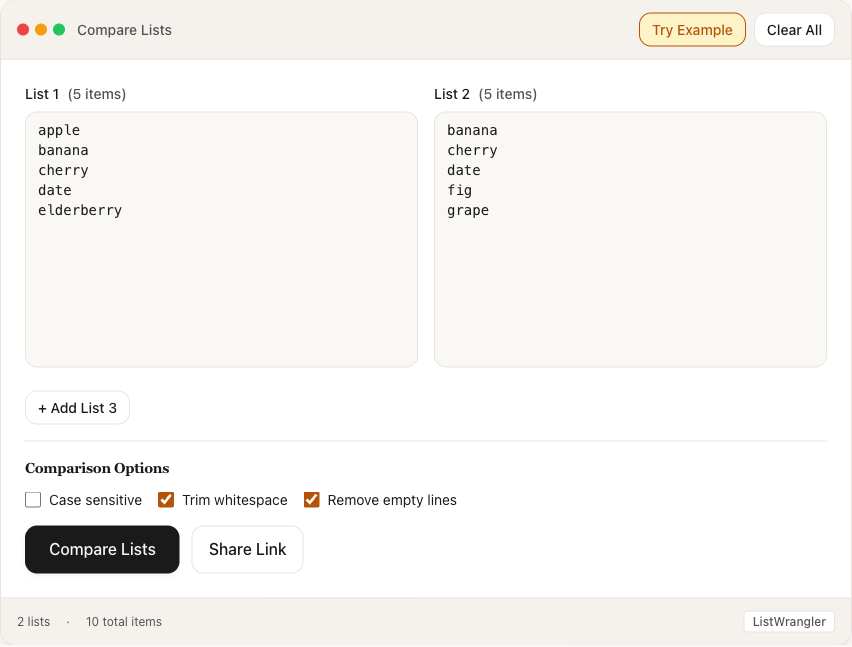
Navigate to the Compare page and paste your items into List 1 and List 2 (one item per line). You can also click Try Example to load sample data.
Step 2: View Results
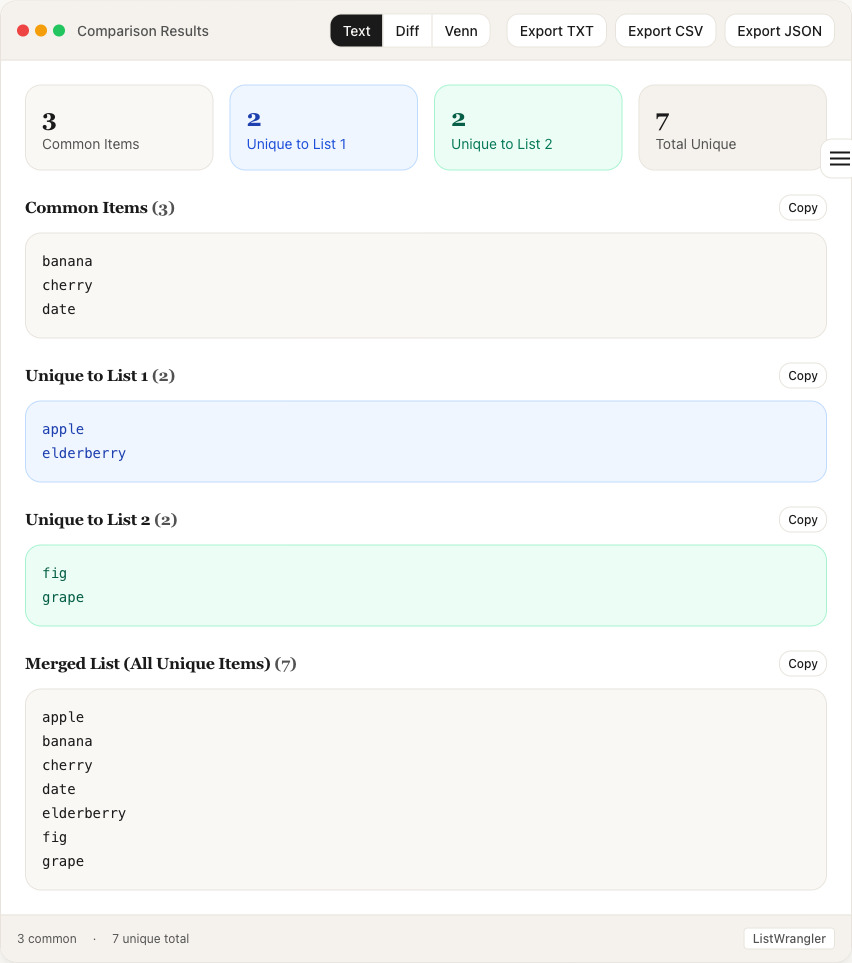
Click the Compare Lists button. The results appear immediately, showing:
- Summary Statistics: Quick counts of common items, unique items per list, and total unique items
- Common Items: Items found in both lists
- Unique to List 1: Items only in the first list
- Unique to List 2: Items only in the second list
- Merged List: All unique items combined
Each section has a Copy button to quickly copy results to your clipboard.
Step 3: Visualize with Venn Diagram
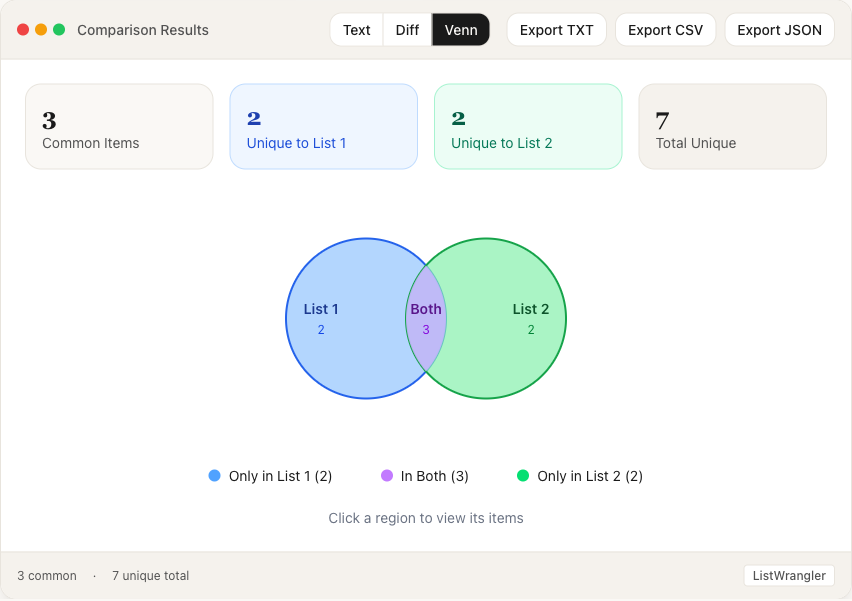
For two-list comparisons, click the Venn button to see a visual representation. The diagram shows:
- Left circle (blue): Items unique to List 1
- Overlap (purple): Items in both lists
- Right circle (green): Items unique to List 2
Click any region or legend item to view its contents.
Comparison Options
Before comparing, you can adjust these options:
- Case sensitive: Treat “Apple” and “apple” as different items
- Trim whitespace: Ignore leading/trailing spaces when matching
- Remove empty lines: Exclude blank lines from comparison
Tips
- Add a third list: Click + Add List 3 to compare up to three lists simultaneously
- Export results: Use the Export buttons (TXT, CSV, JSON) to download your comparison results
- Share comparisons: Click Share Link to create a URL that preserves your lists for sharing
- Use Recent comparisons: Access your recent comparisons from the Recent button
Common Use Cases
- Contact deduplication: Find duplicate contacts across multiple address books
- Email list management: Identify new subscribers or unsubscribes between list versions
- Inventory reconciliation: Compare inventory from different sources to spot discrepancies
- Student roster comparison: Find students enrolled in multiple classes
- Data migration validation: Verify all records were transferred between systems
- Price list analysis: Compare product lists from different vendors
Was this guide helpful?
Let us know how we can improve
Ready to try it yourself?
Put what you learned into practice. ListWrangler is free, requires no sign-up, and works entirely in your browser.
Try ListWrangler Free