Bulk Find and Replace Multiple Text Patterns at Once
Save time by replacing multiple text patterns simultaneously in ListWrangler. Learn how to batch process find and replace operations, reorder replacements, and clean up lists efficiently.
When you need to make many different replacements in your list, doing them one at a time is tedious and time-consuming. ListWrangler’s Bulk Mode lets you define multiple find-and-replace pairs and execute them all at once.
What You’ll Learn
In this guide, you’ll discover how to:
- Switch to Bulk Mode for batch replacements
- Add multiple find-and-replace pairs
- Reorder and manage replacement rows
- Execute all replacements simultaneously
Why Use Bulk Find and Replace?
Bulk mode is perfect when you need to:
- Clean imported data with multiple inconsistencies
- Standardize terminology across your list
- Fix multiple typos in one operation
- Convert abbreviations to full text (or vice versa)
- Migrate data formats with multiple pattern changes
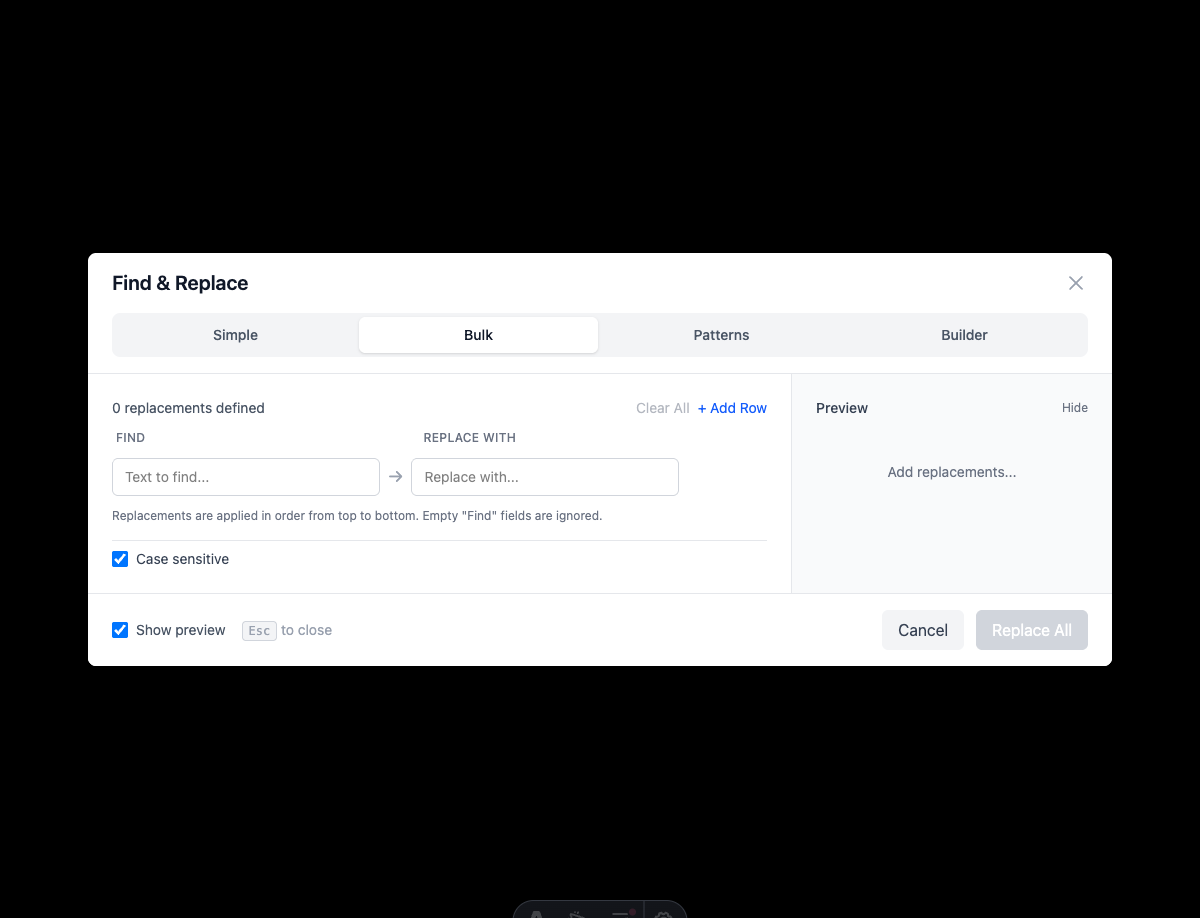
Step 1: Open Find & Replace in Bulk Mode
- Click the Find & Replace button in the toolbar
- In the modal, click the Bulk tab at the top
- You’ll see a table with columns for “Find” and “Replace”
Step 2: Add Your Replacement Pairs
Each row represents one find-and-replace operation:
- First row: Enter your first find text and replacement
- Click Add Row (+ button) to add more pairs
- Continue adding all the replacements you need
Example: Standardizing State Abbreviations
| Find | Replace |
|---|---|
NY | New York |
CA | California |
TX | Texas |
FL | Florida |
IL | Illinois |
Step 3: Organize Your Replacements
The order of replacements matters! Replacements are executed sequentially from top to bottom.
Reorder Rows
- Click the up arrow to move a row higher in the list
- Click the down arrow to move a row lower
- This is important when one replacement might affect another
Remove Rows
- Click the trash icon next to any row to delete it
- Use Clear All to remove all rows and start fresh
Why Order Matters
Consider this scenario:
- Replace
catwithfeline - Replace
felinewithcat
If you run these in this order, “cat” becomes “feline” in step 1, then back to “cat” in step 2! Always plan your replacement order carefully.
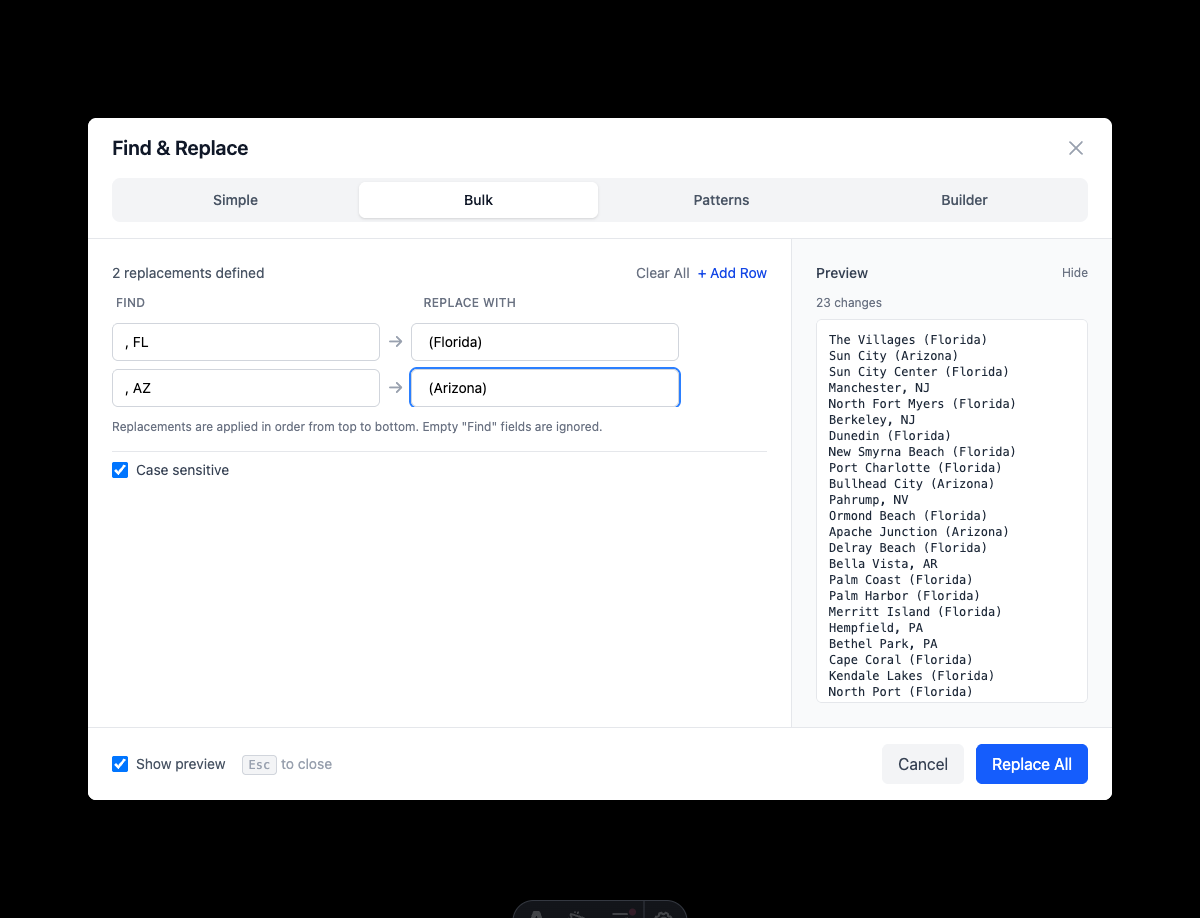
Step 4: Preview and Execute
- Enable Show Preview to see all changes that will be made
- Check the total replacement count at the bottom
- Review the preview panel to verify changes
- Click Replace All to execute all replacements
Practical Use Cases
Use Case 1: Data Cleanup After Import
When importing data from spreadsheets or databases, you often have inconsistent formatting:
| Find | Replace |
|---|---|
N/A | (empty) |
null | (empty) |
undefined | (empty) |
| |
" | (empty) |
Use Case 2: Converting Product Codes
Update old product codes to new ones:
| Find | Replace |
|---|---|
SKU-001 | PROD-A001 |
SKU-002 | PROD-A002 |
SKU-003 | PROD-A003 |
Use Case 3: Normalizing Names
Standardize name formats in your list:
| Find | Replace |
|---|---|
Jr. | Junior |
Sr. | Senior |
Dr. | Doctor |
Mr. | Mister |
Mrs. | Missus |
Use Case 4: HTML Entity Conversion
Convert HTML entities to actual characters:
| Find | Replace |
|---|---|
& | & |
< | < |
> | > |
" | " |
| |
Use Case 5: Regional Spelling Variants
Convert between American and British English:
| Find | Replace |
|---|---|
colour | color |
favourite | favorite |
organisation | organization |
centre | center |
behaviour | behavior |
Tips for Efficient Bulk Replacements
1. Start with the Most Specific
Put longer, more specific patterns first to avoid partial matches:
- Replace
New York CitybeforeNew York - Replace
JavaScriptbeforeJava
2. Group Related Replacements
Keep similar replacements together for easier management and debugging.
3. Test on a Sample First
If you have a large list, test your bulk replacements on a small sample to verify they work as expected.
4. Use Empty Replacements to Delete
Leave the “Replace” field empty to delete the matched text entirely.
5. Document Complex Replacement Sets
For frequently used replacement sets, keep notes on what each set does for future reference.
Common Mistakes to Avoid
- Conflicting patterns: Two patterns that could match the same text
- Wrong order: Not considering how earlier replacements affect later ones
- Missing entries: Forgetting edge cases or variations
- Case sensitivity: Not accounting for different capitalizations
What’s Next?
Take your find and replace skills further:
- Using Regex Patterns - Use powerful pattern matching
- Extract Data from Lists - Pull specific data types
- Create Custom Patterns - Build reusable patterns
Frequently Asked Questions
How many replacement pairs can I add?
There’s no hard limit. Add as many as you need for your task.
Can I save my bulk replacement sets?
Currently, bulk replacements are session-based. For frequently used patterns, consider using the Custom Patterns feature.
Are bulk replacements case-sensitive?
By default, yes. Each replacement uses exact matching. For case-insensitive bulk operations, you may need to add variations (e.g., both “Error” and “error”).
What happens if no matches are found?
Rows with no matches are simply skipped. You’ll see a count of 0 matches for those entries, but it won’t cause any errors.
Was this guide helpful?
Let us know how we can improve
Ready to try it yourself?
Put what you learned into practice. ListWrangler is free, requires no sign-up, and works entirely in your browser.
Try ListWrangler Free