How to Filter Lines by Pattern
Learn how to keep or remove lines from your list based on text patterns using ListWrangler's Filter Lines feature.
Need to extract specific items from a long list or remove unwanted entries? ListWrangler’s Filter Lines feature lets you quickly keep or remove lines based on text patterns, making it easy to narrow down your data to exactly what you need.
What is Filter Lines?
Filter Lines allows you to search through your list and either:
- Keep only the lines that contain a specific word or pattern
- Remove all lines that match a pattern
For example, if you have a list of desserts and want to see only apple-based items, you can filter to keep lines containing “apple” and instantly get your filtered results.
Step-by-Step Guide
Step 1: Enter Your List
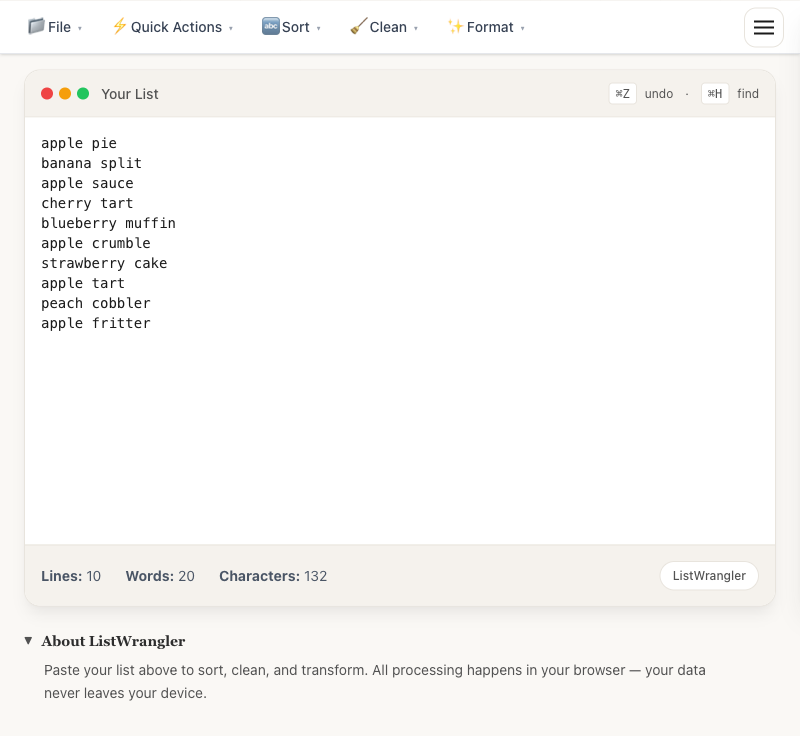
Paste or type your list into the editor. For this example, we’ll use a list of desserts:
Step 2: Open the Filter Lines Menu
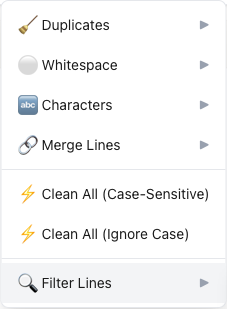
Click the Clean menu in the toolbar, then hover over Filter Lines to see the two options:
- Keep Lines Containing… - keeps only matching lines
- Remove Lines Containing… - removes matching lines
Step 3: Configure Your Filter
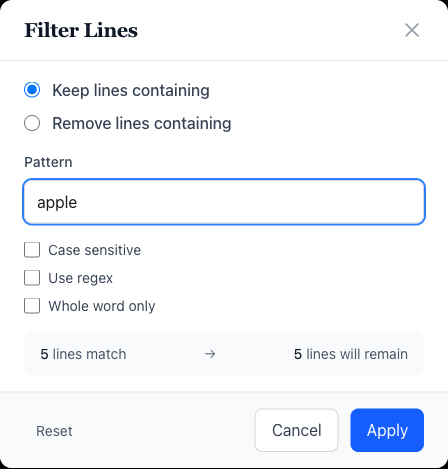
After selecting an option, the Filter Lines dialog opens. Here you can:
- Choose the mode: Keep or Remove lines containing the pattern
- Enter your pattern: Type the text you want to match
- Set options:
- Case sensitive: Match exact capitalization
- Use regex: Enable regular expressions for advanced patterns
- Whole word only: Match complete words, not partial matches
The preview at the bottom shows how many lines match and how many will remain.
Step 4: Apply the Filter
Click Apply to filter your list. The editor now shows only the lines that passed your filter.
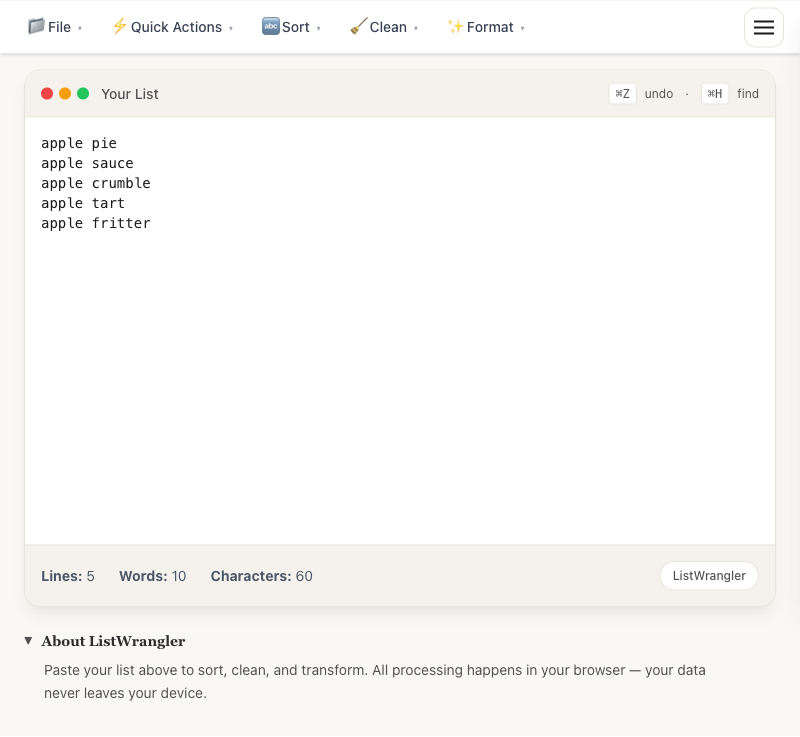
In this example, filtering for “apple” reduced our 10-item dessert list to just 5 apple-based desserts.
Tips
- Use Undo if needed: Press Cmd+Z (Mac) or Ctrl+Z (Windows) to undo the filter and restore your original list
- Combine with other operations: After filtering, you can sort, clean, or transform your filtered results
- Try Remove mode: Use “Remove Lines Containing” to delete unwanted entries like blank lines, comments, or errors from log files
Common Use Cases
- Log file analysis: Keep only error lines, or remove debug messages
- Data extraction: Extract lines containing specific keywords from large datasets
- List cleanup: Remove lines containing certain words or characters
- Email list filtering: Keep only addresses from specific domains
- Code cleanup: Remove commented lines or filter for specific function calls
Was this guide helpful?
Let us know how we can improve
Ready to try it yourself?
Put what you learned into practice. ListWrangler is free, requires no sign-up, and works entirely in your browser.
Try ListWrangler Free