How to Count Words, Characters, and Reading Time
Learn how to use ListWrangler's word counter to track words, characters, sentences, and get reading time estimates.
Need to check word count for an essay, blog post, or social media caption? ListWrangler’s word counter gives you instant statistics as you type, plus detailed analysis for SEO and readability.
What You’ll Learn
In this guide, you’ll discover how to:
- Get instant word and character counts as you type
- View reading and speaking time estimates
- Access detailed statistics including keyword density
- Copy your statistics for reports or documentation
Step 1: Paste or Type Your Text
Go to the Word Counter page and paste your text into the editor. You can also type directly - the statistics update in real-time as you work.
The editor accepts text from any source: Word documents, PDFs, web pages, or plain text files. Simply copy (Ctrl+C or Cmd+C) and paste (Ctrl+V or Cmd+V) your content.
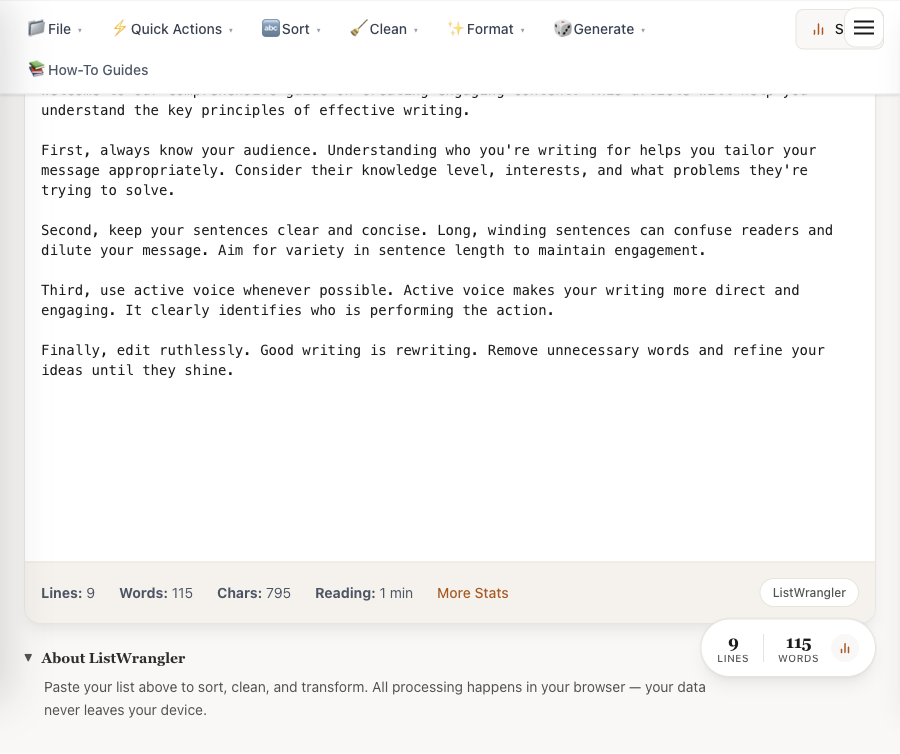
Step 2: View Real-Time Statistics
As soon as you enter text, the statistics bar at the bottom of the editor displays your counts:
- Lines - Total number of lines in your text
- Words - Total word count
- Chars - Character count including spaces
- Reading - Estimated reading time at 200 words per minute

These statistics update instantly as you type or edit your text.
Step 3: Access Detailed Statistics
For comprehensive text analysis, click the More Stats button to open the Statistics modal. Here you’ll find:
Counts Tab:
- Words, characters (with and without spaces)
- Lines, non-empty lines, paragraphs
- Sentence count
Reading Metrics:
- Reading time (at 200 words/minute)
- Speaking time (at 150 words/minute)
Additional Tabs:
- Keywords - Word frequency and density analysis
- SEO - Title and meta description length checks
- Social - Character limits for Twitter, LinkedIn, Instagram
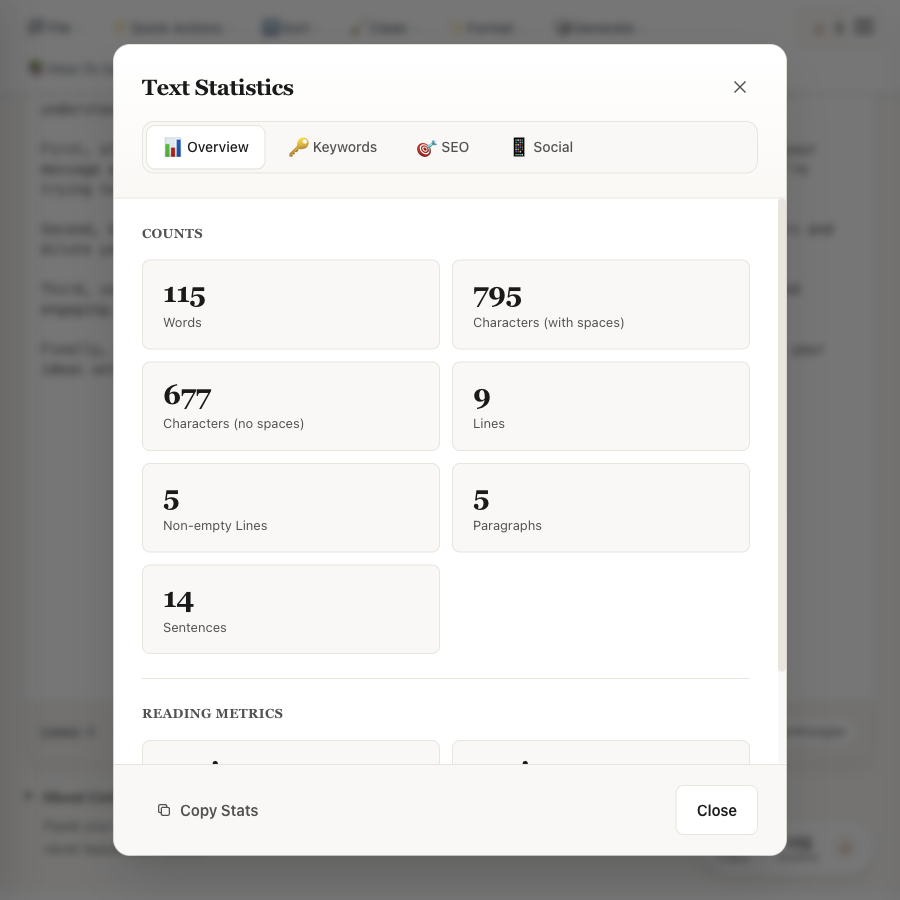
Click Copy Stats to copy all statistics to your clipboard for easy sharing or documentation.
Practical Examples
Example 1: Checking Essay Word Count
If your professor requires a 500-word essay, paste your draft and check the word count instantly. The statistics bar shows “Words: 487” - you need 13 more words.
Example 2: Preparing a Presentation
For a 5-minute presentation, aim for about 750 words (at 150 words per minute speaking pace). The detailed stats show your speaking time to help you hit your target.
Example 3: Writing a Tweet
Check if your text fits Twitter’s 280-character limit in the Social tab. Green means you’re within limits; red means you need to trim.
Tips for Better Results
- Use the keyboard shortcut - Press Cmd+Z (Mac) or Ctrl+Z (Windows) to undo changes while editing
- Check both character counts - Characters with spaces vs. without spaces matter for different platforms
- Review keyword density - For SEO content, aim for 1-3% density on your target keywords
- Copy stats for reports - Use the Copy Stats button to quickly grab all metrics
What’s Next?
Now that you know how to count words, explore these related guides:
Frequently Asked Questions
How are hyphenated words counted?
Hyphenated words like “well-known” are counted as a single word, matching the standard approach used by Microsoft Word and Google Docs.
Is my text private?
Yes, 100% private. All processing happens in your browser - your text never leaves your device or gets sent to any server.
What reading speed is used for time estimates?
Reading time uses 200 words per minute (average adult reading speed). Speaking time uses 150 words per minute (comfortable presentation pace).
Was this guide helpful?
Let us know how we can improve
Ready to try it yourself?
Put what you learned into practice. ListWrangler is free, requires no sign-up, and works entirely in your browser.
Try ListWrangler Free