How to Sort by Extracted Value
Sort your lists by embedded values like prices, percentages, or numbers without reformatting your data.
Sort your lists by embedded values like prices, percentages, or numbers without reformatting your data.
What is Sort by Extracted Value?
Sometimes your data contains values embedded within text that you want to sort by. For example:
McLean, VA ($250k)
Austin, TX ($185k)
Cupertino, CA ($231k)
Instead of manually extracting the dollar amounts, Sort by Extracted Value automatically finds and sorts by these embedded values.
Step-by-Step Guide
Step 1: Enter Your Data
Paste or type your list into the text area. Each line should contain the value you want to sort by.
Example input:
McLean, VA ($250k)
Austin, TX ($185k)
Cupertino, CA ($231k)
Seattle, WA ($195k)
Denver, CO ($165k)
Boston, MA ($210k)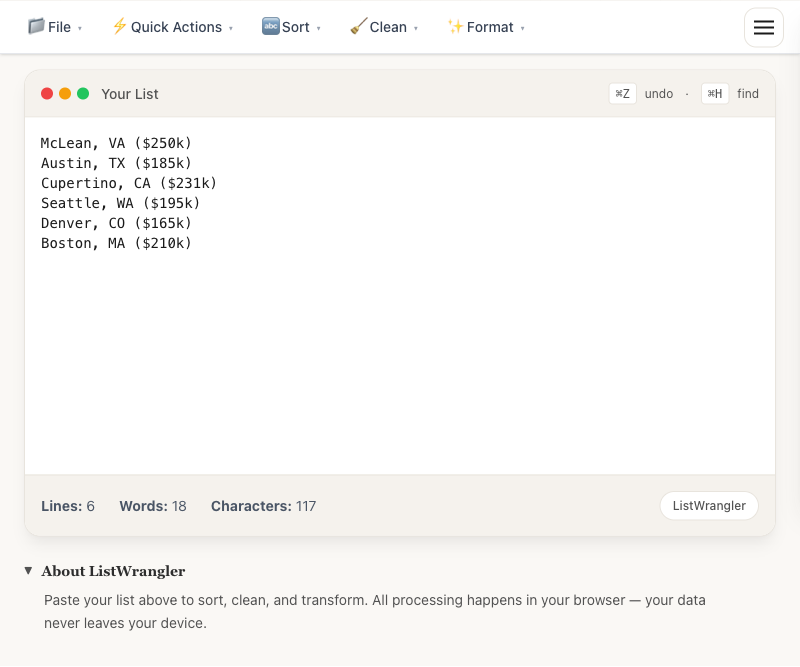
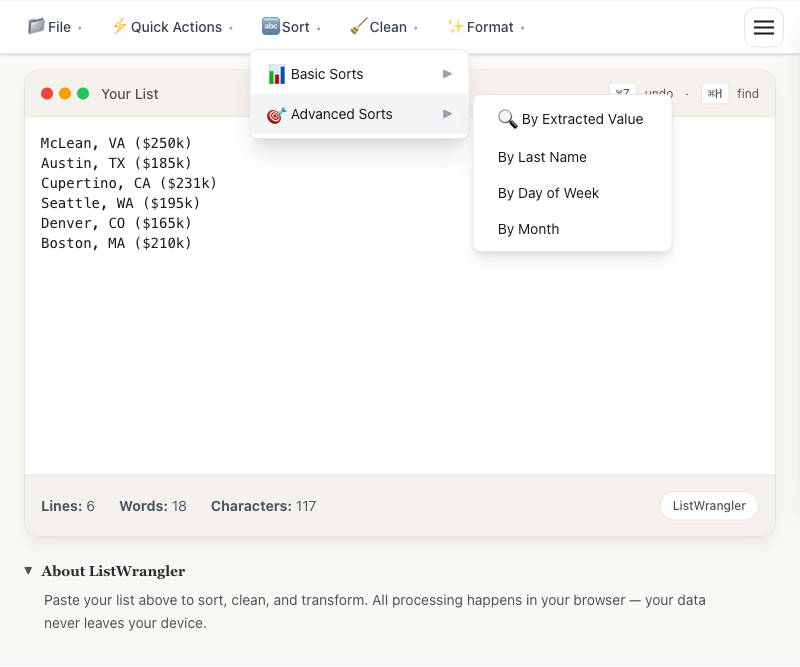
Step 2: Open the Sort Menu
Click Sort in the toolbar, then select Advanced Sorts > By Extracted Value.
Step 3: Choose Your Extraction Type
Select the type of value to extract:
| Type | Examples | Use Case |
|---|---|---|
| Currency | $250k, $1.5M, $1,234.56 | Salaries, prices, budgets |
| Number | 42, 3.14, -100 | Quantities, ratings, scores |
| Percent | 75%, 12.5% | Completion rates, growth |
| Date | 2024-12-25, 1/15/24 | Event dates, deadlines |
Step 4: Select Sort Order
Choose your sort direction:
- High to Low: Largest values first (descending)
- Low to High: Smallest values first (ascending)
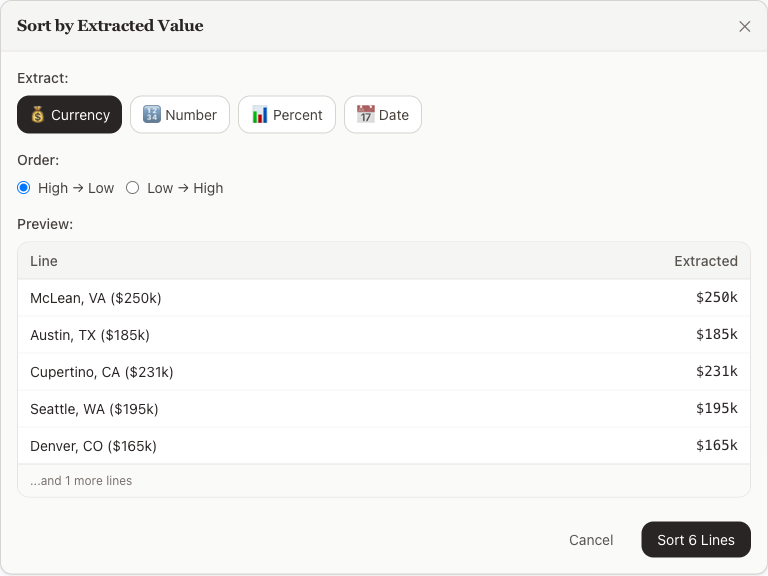
Step 5: Preview and Apply
The preview shows:
- Your original lines
- The extracted value for each line
- Lines with no extractable value (highlighted)
Click Sort [N] Lines to apply the sort.
Example Results
Input (unsorted):
McLean, VA ($250k)
Austin, TX ($185k)
Cupertino, CA ($231k)
Seattle, WA ($195k)
Denver, CO ($165k)
Boston, MA ($210k)
Output (sorted by Currency, High to Low):
McLean, VA ($250k)
Cupertino, CA ($231k)
Boston, MA ($210k)
Seattle, WA ($195k)
Austin, TX ($185k)
Denver, CO ($165k)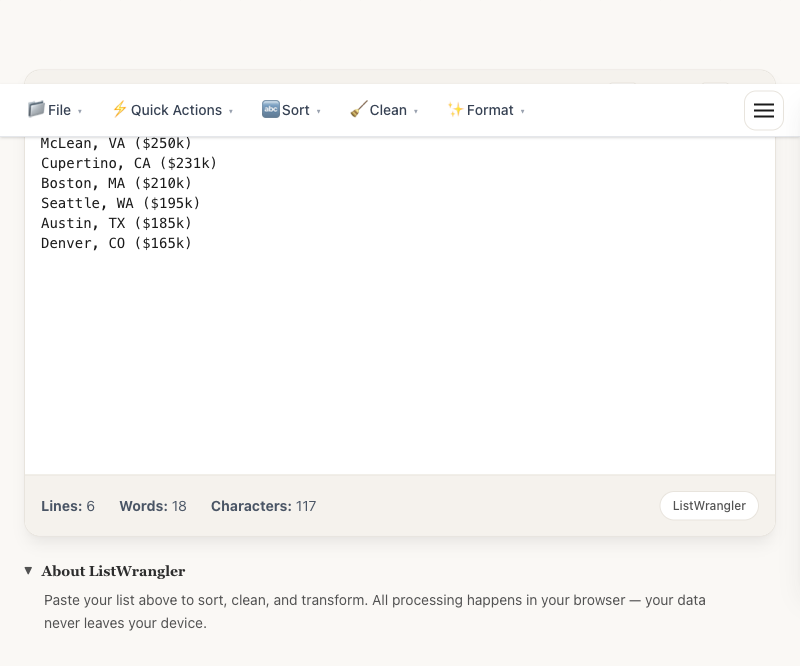
Supported Formats
Currency
- Standard:
$500,$1,234.56 - Shorthand:
$250k,$1.5M,$2B - With spaces:
$ 500
Numbers
- Integers:
42,1000 - Decimals:
3.14,99.99 - Negative:
-50,-3.5 - With commas:
1,000,000
Percentages
- Whole:
75% - Decimal:
12.5%
Dates
- ISO:
2024-12-25 - US:
12/25/2024,12/25/24
Handling Missing Values
Lines without an extractable value:
- Are shown with “none” in the preview
- Display a warning: “X lines have no extractable value”
- Sort to the end of the list (regardless of sort direction)
Tips
- Multiple values per line: The tool uses the first match it finds
- Mixed formats: The tool handles mixed formats (e.g.,
$500and$1.5Mtogether) - Undo: Use Ctrl+Z to undo if the result isn’t what you expected
- Preview first: Always check the preview to verify extraction is correct
Common Use Cases
- Salary comparisons: Sort job listings by compensation
- Product pricing: Order items by price
- Performance metrics: Rank by percentage or score
- Date ordering: Sort events chronologically
- Budget analysis: Order line items by amount
Was this guide helpful?
Let us know how we can improve
Ready to try it yourself?
Put what you learned into practice. ListWrangler is free, requires no sign-up, and works entirely in your browser.
Try ListWrangler Free