Create and Save Custom Regex Patterns for Reuse
Learn how to build, save, and manage custom regex patterns in ListWrangler's Pattern Builder. Create reusable patterns for your specific data formats and share them across sessions.
While ListWrangler includes many pre-built patterns for common data types, sometimes you need patterns tailored to your specific data. The Pattern Builder lets you create, test, and save custom patterns for future use.
What You’ll Learn
In this guide, you’ll discover how to:
- Use the Pattern Builder interface
- Create custom regex patterns step-by-step
- Test and validate patterns before saving
- Save patterns for future sessions
- Import and export pattern collections
- Manage your custom pattern library
Why Create Custom Patterns?
Custom patterns are valuable when you need to:
- Match proprietary formats (internal codes, custom IDs)
- Handle industry-specific data (medical codes, legal citations)
- Adapt to your data (specific date formats, naming conventions)
- Reuse complex patterns without rewriting them each time
- Share patterns with team members
Step 1: Open the Pattern Builder
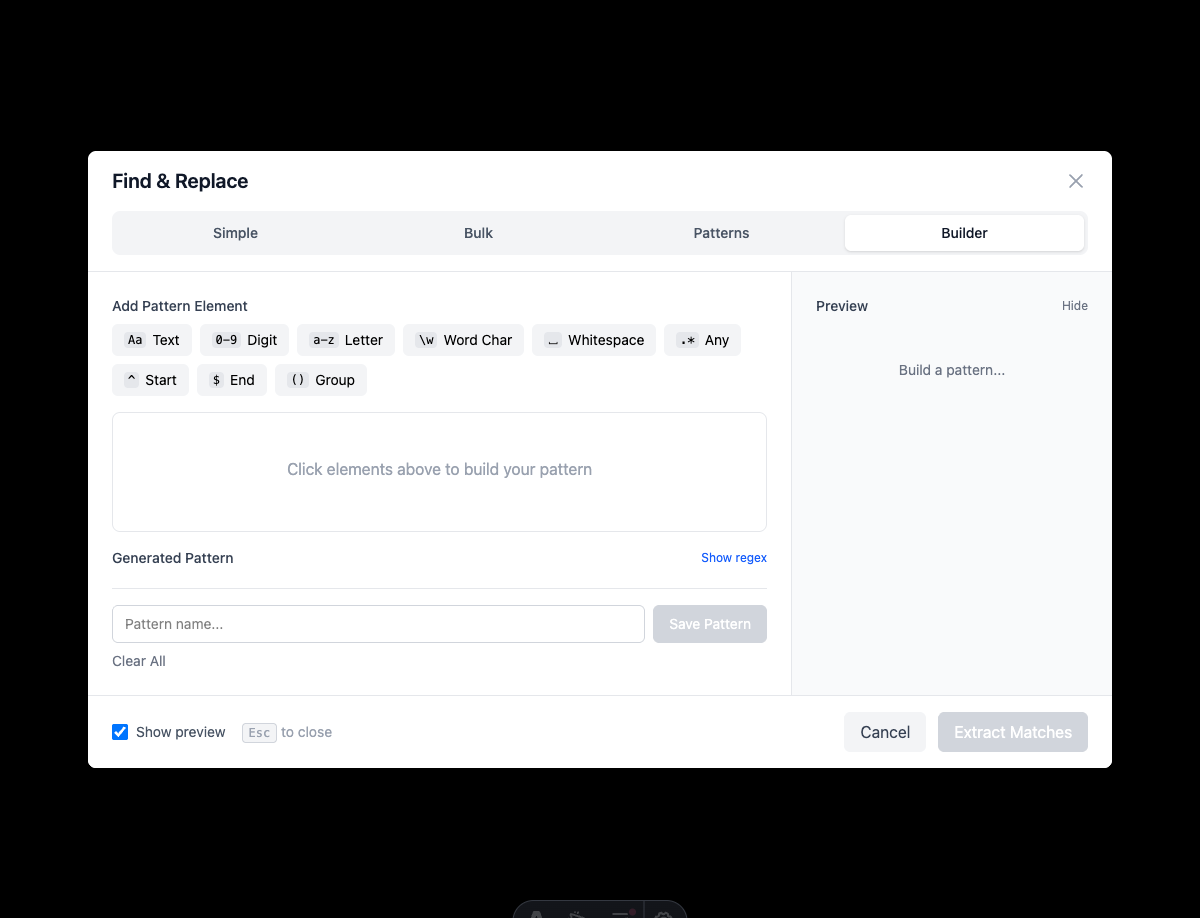
- Click Find & Replace in the toolbar
- Select the Builder tab at the top
- You’ll see the pattern creation interface
Step 2: Build Your Pattern
The Pattern Builder provides a structured way to create regex patterns:
Pattern Input Field
Enter your regex pattern in the main input field. The builder validates your pattern in real-time.
Validation Feedback
- Green checkmark: Pattern is valid
- Red warning: Pattern has syntax errors
- Match count: Shows how many matches found in current text
Testing Area
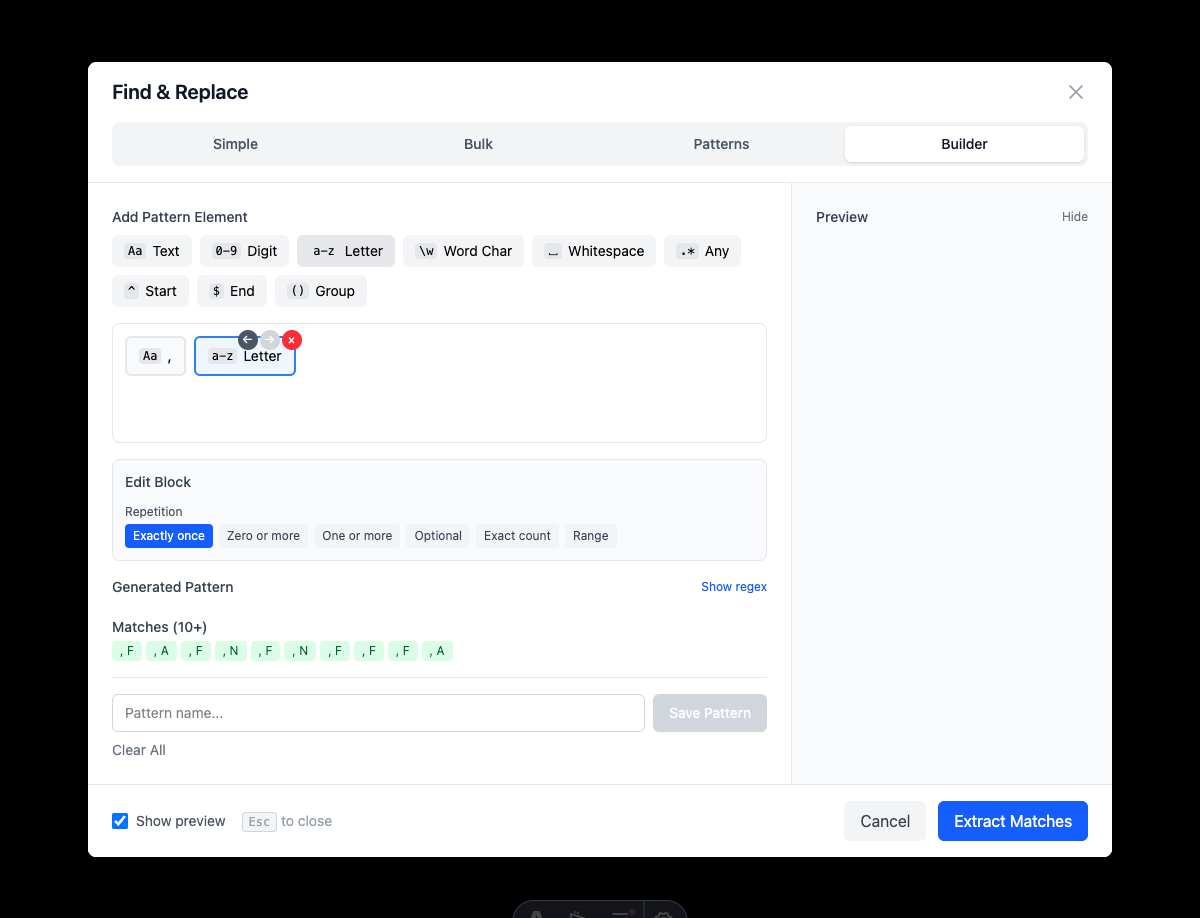
Your current list content is used as the test data. As you type your pattern, matches are highlighted.
Creating Patterns: Step-by-Step Examples
Example 1: Product SKU Pattern
Suppose your product SKUs follow the format: ABC-12345-XY
Pattern: [A-Z]{3}-\d{5}-[A-Z]{2}
Breaking it down:
[A-Z]{3}- Exactly 3 uppercase letters-- Literal dash\d{5}- Exactly 5 digits-- Literal dash[A-Z]{2}- Exactly 2 uppercase letters
Example 2: Employee ID Pattern
Employee IDs in format: EMP001234
Pattern: EMP\d{6}
Breaking it down:
EMP- Literal text “EMP”\d{6}- Exactly 6 digits
Example 3: Custom Date Format
Dates in format: 15-Jan-2025
Pattern: \d{2}-[A-Z][a-z]{2}-\d{4}
Breaking it down:
\d{2}- Two digits (day)-- Literal dash[A-Z][a-z]{2}- Capitalized month abbreviation-- Literal dash\d{4}- Four digits (year)
Example 4: Version Numbers
Software versions like: v2.1.0, v10.5.23
Pattern: v\d+\.\d+\.\d+
Breaking it down:
v- Literal “v”\d+- One or more digits (major)\.- Literal period (escaped)\d+- One or more digits (minor)\.- Literal period\d+- One or more digits (patch)
Example 5: Hashtags
Social media hashtags: #ListWrangler
Pattern: #[A-Za-z]\w*
Breaking it down:
#- Literal hash symbol[A-Za-z]- Must start with a letter\w*- Followed by any word characters
Step 3: Test Your Pattern
Before saving, thoroughly test your pattern:
- Check match count: Ensure the number of matches is expected
- Review edge cases: Test with variations of your data
- Verify no false positives: Make sure it doesn’t match unwanted text
- Verify no false negatives: Make sure it catches all valid matches
Testing Tips
- Add sample data to your list specifically for testing
- Include both valid and invalid examples
- Test boundary cases (shortest and longest valid inputs)
- Check for partial matches that shouldn’t occur
Step 4: Save Your Pattern
Once your pattern works correctly:
- Click Save Pattern button
- Enter a Name for your pattern (e.g., “Product SKU”)
- Select or create a Category (e.g., “Business”, “Custom”)
- Add an optional Description explaining what it matches
- Click Save
Your pattern is now saved in your browser’s local storage.
Managing Custom Patterns
Access Saved Patterns
- Go to Pattern Mode (Pattern tab)
- Your custom patterns appear alongside built-in patterns
- Custom patterns are marked with a special icon
Edit Existing Patterns
- Select your custom pattern
- Click the Edit button
- Modify the pattern, name, or description
- Save your changes
Delete Patterns
- Select the pattern to remove
- Click the Delete button
- Confirm deletion
Note: Deleted patterns cannot be recovered unless you have an export backup.
Import and Export Patterns
Export Your Patterns
Share patterns with others or back them up:
- Go to Pattern Mode settings
- Click Export Patterns
- A JSON file downloads with all your custom patterns
Import Patterns
Add patterns from colleagues or restore from backup:
- Click Import Patterns
- Select a JSON pattern file
- Review the patterns being imported
- Confirm import
Import Validation
ListWrangler validates imported patterns for safety:
- Patterns are checked for valid regex syntax
- Potentially dangerous patterns are flagged
- You can review before accepting imports
Best Practices for Custom Patterns
1. Use Descriptive Names
Name patterns clearly: “Invoice Number” not “Pattern 1”
2. Add Helpful Descriptions
Include format examples: “Matches ABC-12345 format”
3. Organize by Category
Group related patterns: “Finance”, “HR”, “Products”
4. Test Thoroughly
Validate against real data before saving
5. Document Edge Cases
Note any limitations in the description
6. Regular Backups
Export your patterns periodically
Pattern Building Reference
Common Pattern Components
| Component | Pattern | Matches |
|---|---|---|
| Any digit | \d | 0-9 |
| Any letter | [a-zA-Z] | a-z, A-Z |
| Word character | \w | a-z, A-Z, 0-9, _ |
| Whitespace | \s | Space, tab, newline |
| Any character | . | Anything except newline |
| Literal special char | \. \* \+ | . * + |
Quantifiers Quick Reference
| Quantifier | Meaning |
|---|---|
* | 0 or more |
+ | 1 or more |
? | 0 or 1 |
{n} | Exactly n |
{n,} | n or more |
{n,m} | Between n and m |
Troubleshooting Custom Patterns
Pattern Won’t Save
- Check for syntax errors (red validation warning)
- Ensure name field is filled
- Try a shorter pattern name
Pattern Not Matching Expected Text
- Verify regex mode is enabled
- Check case sensitivity
- Test with simpler version first
Imported Patterns Not Appearing
- Ensure JSON file is valid
- Check for duplicate pattern names
- Verify pattern passed security validation
What’s Next?
Put your custom patterns to work:
- Extract Data - Use patterns to extract data
- Mask Sensitive Data - Redact matched content
- Advanced Regex - Learn more regex techniques
Frequently Asked Questions
Are my patterns saved permanently?
Custom patterns are saved in your browser’s local storage. They persist across sessions but are browser-specific. Export regularly for backup.
Can I share patterns with my team?
Yes! Export your patterns to a JSON file and share it. Team members can import the file to get your patterns.
Is there a limit to how many patterns I can save?
No hard limit, but browser storage has limits. Keep your library organized and remove unused patterns.
Will patterns work across different browsers?
Patterns are standard JavaScript regex, so they work the same everywhere. However, saved patterns are browser-specific. Use export/import to transfer between browsers.
Can I edit built-in patterns?
Built-in patterns cannot be edited, but you can create a custom copy with modifications.
Was this guide helpful?
Let us know how we can improve
Ready to try it yourself?
Put what you learned into practice. ListWrangler is free, requires no sign-up, and works entirely in your browser.
Try ListWrangler Free