Using Regex Patterns for Advanced Find and Replace
Master regular expressions (regex) in ListWrangler to find and replace complex text patterns. Learn regex basics, common patterns, and practical examples for powerful list manipulation.
Regular expressions (regex) are powerful patterns that let you search for and replace text based on rules rather than exact matches. ListWrangler’s regex support helps you tackle complex find-and-replace tasks that would be impossible with simple text search.
What You’ll Learn
In this guide, you’ll discover how to:
- Enable regex mode in Find and Replace
- Understand basic regex syntax
- Use common regex patterns
- Replace text using capture groups
- Avoid common regex mistakes
When to Use Regex
Regex is ideal when you need to:
- Match patterns rather than exact text (e.g., any email address)
- Find text with varying content (e.g., any date in MM/DD/YYYY format)
- Transform text structure (e.g., swap first and last names)
- Remove or modify parts of text selectively
Step 1: Enable Regex Mode
- Open the Find & Replace tool
- Check the Use Regex checkbox (labeled “Use regular expression”)
- The Find field will now interpret your input as a regular expression
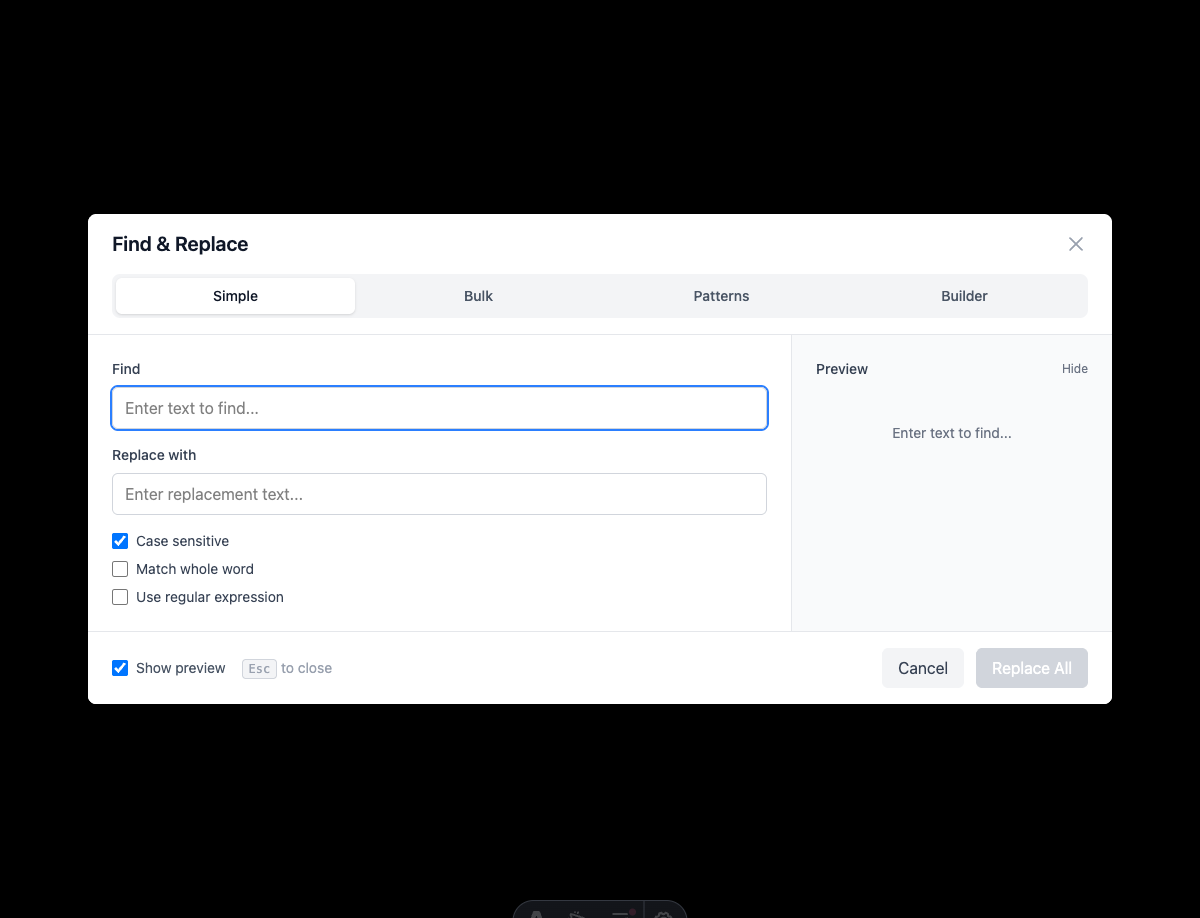
When regex mode is enabled, special characters have special meanings. If you want to search for literal special characters, you’ll need to escape them.
Regex Basics
Literal Characters
Most characters match themselves:
hellomatches “hello”123matches “123”
Special Characters (Metacharacters)
These characters have special meanings in regex:
| Character | Meaning | Example |
|---|---|---|
. | Any single character | h.t matches “hat”, “hit”, “hot” |
* | Zero or more of previous | ab*c matches “ac”, “abc”, “abbc” |
+ | One or more of previous | ab+c matches “abc”, “abbc” (not “ac”) |
? | Zero or one of previous | colou?r matches “color” and “colour” |
^ | Start of line | ^Hello matches “Hello” at line start |
$ | End of line | world$ matches “world” at line end |
\ | Escape special character | \. matches a literal period |
Character Classes
Match specific sets of characters:
| Pattern | Meaning | Example |
|---|---|---|
[abc] | Any one of a, b, or c | [aeiou] matches any vowel |
[^abc] | Any character except a, b, c | [^0-9] matches non-digits |
[a-z] | Any lowercase letter | [a-zA-Z] matches any letter |
\d | Any digit (0-9) | \d\d\d matches “123” |
\w | Word character (a-z, A-Z, 0-9, _) | \w+ matches words |
\s | Whitespace (space, tab, newline) | \s+ matches whitespace |
Quantifiers
Control how many times a pattern matches:
| Quantifier | Meaning |
|---|---|
{3} | Exactly 3 times |
{2,4} | Between 2 and 4 times |
{2,} | 2 or more times |
* | 0 or more times |
+ | 1 or more times |
? | 0 or 1 time |
Step 2: Using Capture Groups
Capture groups let you reference matched text in your replacement. Wrap parts of your pattern in parentheses () to create groups.
Example: Reformat Phone Numbers
Find: (\d{3})-(\d{3})-(\d{4})
Replace: ($1) $2-$3
This transforms:
555-123-4567→(555) 123-4567800-555-1234→(800) 555-1234
Example: Swap First and Last Names
Find: ^(\w+)\s+(\w+)$
Replace: $2, $1
This transforms:
John Smith→Smith, JohnJane Doe→Doe, Jane
Example: Add Prefix to Lines
Find: ^(.+)$
Replace: - $1
This transforms:
Apple→- AppleBanana→- Banana
Common Regex Patterns
Match Email Addresses
[a-zA-Z0-9._%+-]+@[a-zA-Z0-9.-]+\.[a-zA-Z]{2,}Match Phone Numbers (US)
\(?\d{3}\)?[-.\s]?\d{3}[-.\s]?\d{4}Match URLs
https?://[^\s]+Match Dates (MM/DD/YYYY)
\d{2}/\d{2}/\d{4}Match IP Addresses
\d{1,3}\.\d{1,3}\.\d{1,3}\.\d{1,3}Match Quoted Text
"[^"]*"Match HTML Tags
<[^>]+>Practical Examples
Example 1: Remove Trailing Whitespace
Find: \s+$
Replace: (empty)
Removes spaces and tabs at the end of each line.
Example 2: Remove Duplicate Spaces
Find: \s{2,}
Replace: (single space)
Converts multiple spaces to single spaces.
Example 3: Extract Domain from Email
Find: .*@(.*)$
Replace: $1
Transforms john@example.com → example.com
Example 4: Add Quotes Around Words
Find: ^(\w+)$
Replace: "$1"
Transforms Apple → "Apple"
Example 5: Remove Line Numbers
Find: ^\d+\.\s*
Replace: (empty)
Transforms 1. First item → First item
Example 6: Format Currency
Find: (\d+)\.(\d{2})
Replace: $$1.$2
Transforms 19.99 → $19.99
Example 7: Convert to Title Case (Simple)
Find: \b(\w)
Replace: Use with caution - regex alone can’t do true title case
Note: For true title case conversion, use ListWrangler’s dedicated case transformation tools.
Tips for Writing Regex
1. Start Simple
Begin with a basic pattern and add complexity as needed.
2. Test Incrementally
Use the preview feature to see matches before replacing.
3. Be Specific
The more specific your pattern, the less likely you’ll match unintended text.
4. Use Anchors
^ and $ help ensure you match complete lines or specific positions.
5. Escape Special Characters
When searching for literal ., *, +, etc., escape them with \.
Common Mistakes to Avoid
- Forgetting to escape periods:
.matches any character, use\.for literal periods - Greedy matching:
.*matches as much as possible; use.*?for minimal matching - Missing anchors: Without
^and$, patterns can match anywhere in the text - Over-complicated patterns: Break complex patterns into multiple simpler operations
Regex Troubleshooting
Pattern Not Matching?
- Check if regex mode is enabled
- Verify special characters are escaped correctly
- Test your pattern on a simple example first
Too Many Matches?
- Make your pattern more specific
- Add anchors (
^,$) to limit where matches occur - Use word boundaries (
\b) to match whole words
Replacement Not Working?
- Verify capture group numbers (
$1,$2, etc.) - Ensure groups are properly closed with
) - Check that your replacement string is correct
What’s Next?
Continue mastering ListWrangler’s pattern features:
- Extract Data with Patterns - Use built-in extraction patterns
- Create Custom Patterns - Save your regex for reuse
- Mask Sensitive Data - Protect private information
Frequently Asked Questions
Do I need to know regex to use ListWrangler?
No! ListWrangler’s Pattern Mode provides pre-built patterns for common tasks. Regex is optional for advanced users.
Is there a regex reference I can use?
Yes, regex is a standard syntax. Any JavaScript regex guide will work with ListWrangler.
What regex flavor does ListWrangler use?
ListWrangler uses JavaScript’s built-in regex engine, which supports most standard regex features.
Can regex slow down large lists?
Complex regex patterns on very large lists may take longer. ListWrangler uses web workers to prevent browser freezing.
Was this guide helpful?
Let us know how we can improve
Ready to try it yourself?
Put what you learned into practice. ListWrangler is free, requires no sign-up, and works entirely in your browser.
Try ListWrangler Free