Extract Emails, Phone Numbers, URLs, and Dates from Lists
Learn how to extract specific data types from text lists using ListWrangler's Pattern Mode. Pull out email addresses, phone numbers, URLs, and dates automatically without writing regex.
Need to pull all email addresses from a document? Extract phone numbers from a contact list? ListWrangler’s Pattern Mode makes it easy to extract specific data types without writing complex regular expressions.
What You’ll Learn
In this guide, you’ll discover how to:
- Use Pattern Mode to extract data
- Extract email addresses from text
- Pull phone numbers in various formats
- Extract URLs and links
- Find and extract dates
- Export extracted data
Why Use Pattern Extraction?
Pattern extraction is invaluable when you need to:
- Build contact lists from unstructured text
- Audit documents for sensitive data
- Migrate data by extracting specific fields
- Clean up imports by isolating relevant information
- Validate data by checking what types of content exist
Step 1: Open Pattern Mode
- Click Find & Replace in the toolbar
- Select the Pattern tab at the top
- You’ll see a list of pre-built patterns organized by category
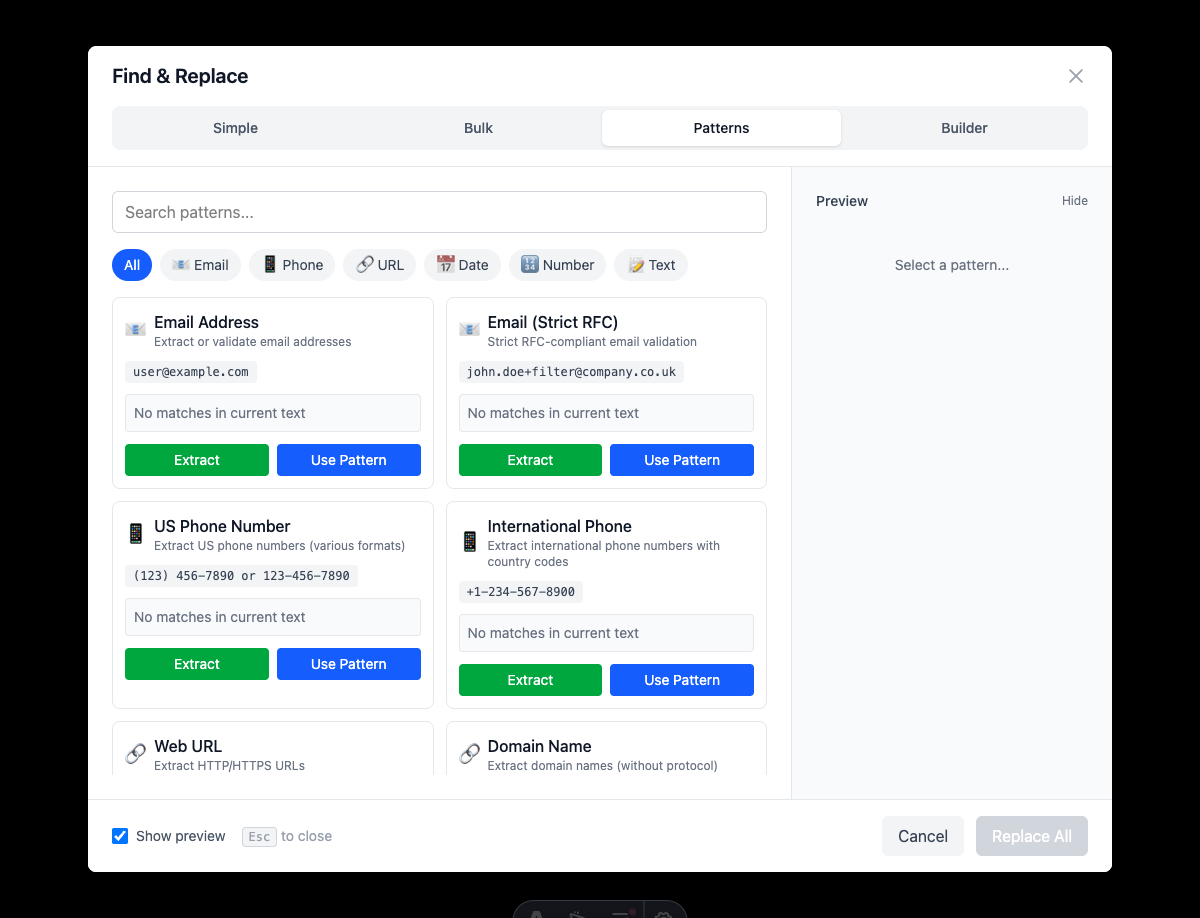
Step 2: Choose a Pattern Category
ListWrangler includes pre-built patterns for common data types:
Email Patterns
- Basic Email: Matches standard email formats
- Strict Email (RFC): Follows RFC specification for stricter matching
Phone Patterns
- US Phone: Matches US phone numbers in various formats
- International Phone: Matches international phone formats with country codes
URL Patterns
- HTTP/HTTPS URLs: Matches full web addresses
- Domain Only: Extracts just the domain portion
Date Patterns
- ISO Date: Matches YYYY-MM-DD format
- US Date: Matches MM/DD/YYYY format
- EU Date: Matches DD/MM/YYYY format
Number Patterns
- Integers: Matches whole numbers
- Decimals: Matches numbers with decimal points
Extracting Email Addresses
Step-by-Step
- Paste your text into the main area
- Open Find & Replace → Pattern tab
- Select Email category
- Choose Basic Email or Strict Email (RFC)
- Click Extract Matches
- All email addresses will be extracted to a new list
Example Input
Contact John at john.doe@example.com for more info.
Sales team: sales@company.org, support@company.org
Invalid: not-an-email, @incomplete.com
Extracted Output
john.doe@example.com
sales@company.org
support@company.org
When to Use Each Email Pattern
| Pattern | Use When |
|---|---|
| Basic Email | General extraction, most use cases |
| Strict Email (RFC) | Need precise RFC-compliant addresses only |
Extracting Phone Numbers
Step-by-Step
- Select Phone category in Pattern Mode
- Choose US Phone or International Phone
- Click Extract Matches
Example Input
Call us at (555) 123-4567 or 800-555-1234
International: +1-555-987-6543, +44 20 7123 4567
Text: 5551234567
Extracted Output (US Phone)
(555) 123-4567
800-555-1234
5551234567
Supported Phone Formats
The US Phone pattern matches:
(555) 123-4567- Parentheses with dashes555-123-4567- Dashes only555.123.4567- Dots555 123 4567- Spaces5551234567- No separators
Extracting URLs
Step-by-Step
- Select URLs category
- Choose HTTP/HTTPS URLs or Domain Only
- Click Extract Matches
Example Input
Visit our website at https://www.example.com/products
Documentation: http://docs.example.org/guide
Download from https://cdn.example.com/file.zip?v=2
Not a URL: www.incomplete or ftp://other-protocol.com
Extracted Output (HTTP/HTTPS)
https://www.example.com/products
http://docs.example.org/guide
https://cdn.example.com/file.zip?v=2
URL Extraction Options
| Pattern | Extracts |
|---|---|
| HTTP/HTTPS URLs | Full URLs starting with http:// or https:// |
| Domain Only | Just the domain portion (e.g., example.com) |
Extracting Dates
Step-by-Step
- Select Dates category
- Choose your date format (ISO, US, or EU)
- Click Extract Matches
Date Format Comparison
| Format | Pattern | Example |
|---|---|---|
| ISO Date | YYYY-MM-DD | 2025-01-15 |
| US Date | MM/DD/YYYY | 01/15/2025 |
| EU Date | DD/MM/YYYY | 15/01/2025 |
Example Input
Meeting on 2025-01-15 at 10am
Due date: 01/15/2025
European format: 15/01/2025
Invalid: 2025/01/15, 15-01-2025
Extracted Output (ISO Date)
2025-01-15Extracting Numbers
Integer Extraction
Pulls whole numbers from your text:
Input: Order #12345 contains 50 items at $19 each
Output: 12345, 50, 19
Decimal Extraction
Pulls numbers with decimal points:
Input: Total: $125.50, Tax: $10.25, Shipping: $5.99
Output: 125.50, 10.25, 5.99
Replace vs. Extract
Pattern Mode offers two actions:
Extract Matches
- Creates a new list containing only the matched data
- Original text is replaced with extracted items
- Perfect for building lists of specific data types
Replace with Text
- Replaces matched patterns with custom text
- Useful for anonymizing or reformatting
- See our data masking guide for details
Practical Use Cases
Use Case 1: Build an Email List
Extract all email addresses from a document or webpage copy-paste to create a contact list.
Use Case 2: Audit for Phone Numbers
Check a document for phone numbers before sharing publicly.
Use Case 3: Extract Links for Verification
Pull all URLs from content to verify they’re valid and appropriate.
Use Case 4: Find Dates in Contracts
Extract all dates from legal documents for deadline tracking.
Use Case 5: Extract Prices
Pull all decimal numbers from a product catalog to analyze pricing.
Tips for Better Extraction
- Preview first: Check the match count before extracting
- Choose the right pattern: Strict patterns may miss valid data; basic patterns may include invalid data
- Review results: Always verify extracted data for accuracy
- Combine with other tools: Use sorting and deduplication after extraction
Working with Multiple Data Types
Need to extract different types of data from the same text?
- Extract one type (e.g., emails)
- Copy or save the results
- Undo to restore original text (
Ctrl+Z) - Extract the next type (e.g., phones)
- Repeat as needed
What’s Next?
Explore more pattern features:
- Create Custom Patterns - Build patterns for your specific data
- Mask Sensitive Data - Redact extracted content
- Using Regex - Write your own patterns
Frequently Asked Questions
Can I extract multiple data types at once?
Currently, you extract one type at a time. Extract each type separately and combine the results.
What if a pattern misses some data?
Try a different pattern variant (e.g., Basic vs. Strict for emails). You can also create custom patterns for specific needs.
Can I extract data to a file?
After extraction, copy the results and paste into your preferred application or file.
Are the extracted results deduplicated?
The extraction preserves all matches. Use ListWrangler’s deduplication feature afterward if needed.
What about extracting other data types?
Use Pattern Builder mode to create custom extraction patterns for any data type. See our custom patterns guide.
Was this guide helpful?
Let us know how we can improve
Ready to try it yourself?
Put what you learned into practice. ListWrangler is free, requires no sign-up, and works entirely in your browser.
Try ListWrangler Free