Mask and Redact Sensitive Data in Lists
Protect privacy by masking emails, phone numbers, and other sensitive data in your lists. Learn to use ListWrangler's redaction features to anonymize data before sharing or publishing.
Before sharing lists or documents, you often need to protect sensitive information. ListWrangler’s masking and redaction features let you replace personal data like email addresses and phone numbers with placeholder text, keeping your data safe while maintaining document structure.
What You’ll Learn
In this guide, you’ll discover how to:
- Mask email addresses in your lists
- Redact phone numbers
- Hide URLs and web addresses
- Replace sensitive data with custom placeholders
- Use patterns for custom data masking
- Prepare documents for safe sharing
Why Mask Sensitive Data?
Data masking is essential when you need to:
- Share sample data without exposing real information
- Create test datasets from production data
- Comply with privacy regulations (GDPR, CCPA, HIPAA)
- Publish examples without revealing personal details
- Audit documents for sensitive content
- Anonymize research data for analysis
Quick Masking with Pattern Mode
ListWrangler provides one-click masking for common data types:
Step 1: Open Pattern Mode
- Click Find & Replace in the toolbar
- Select the Pattern tab
- Choose the data type to mask
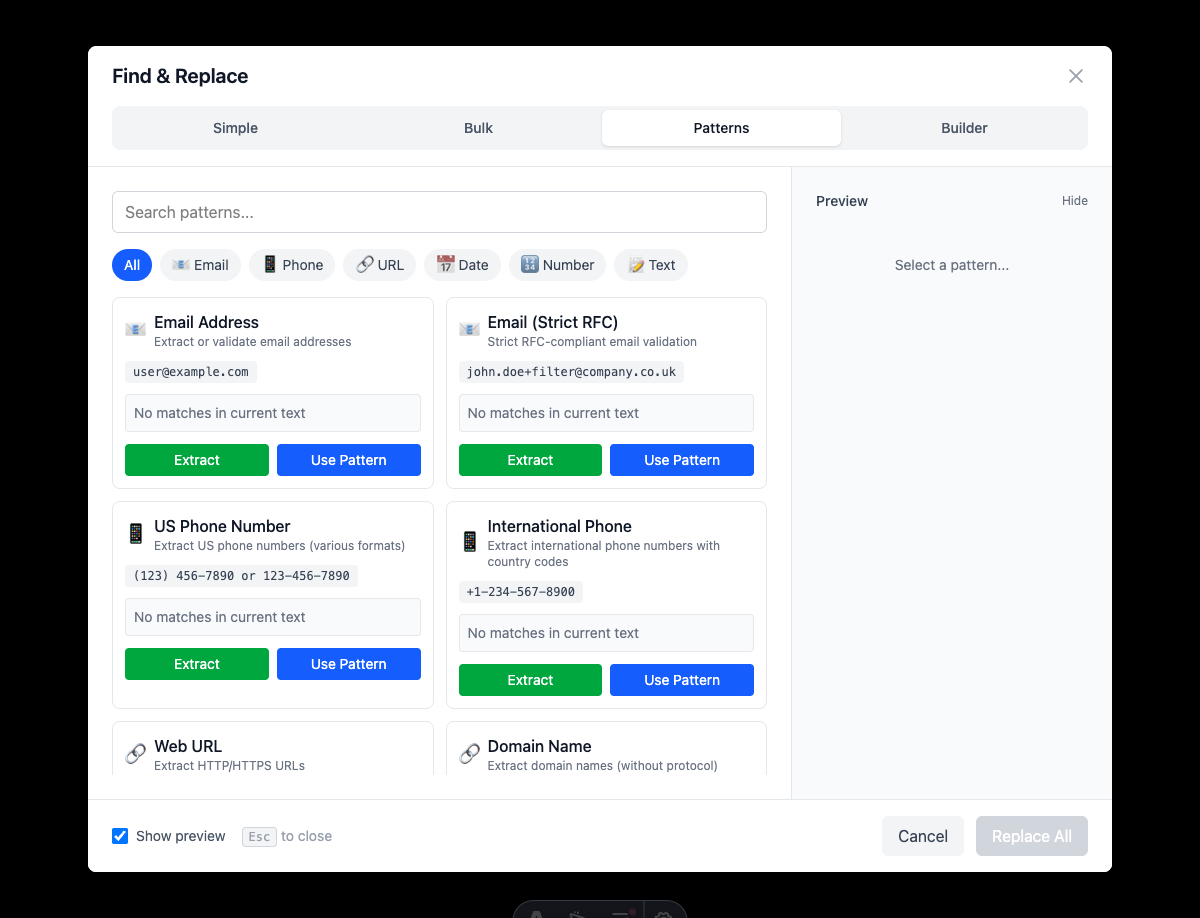
Step 2: Select a Pattern
Choose from built-in patterns:
- Email - Masks email addresses
- Phone - Masks phone numbers
- URLs - Masks web addresses
Step 3: Choose “Replace” Action
- Instead of “Extract Matches”, select Replace
- Enter your replacement text (or use the default)
- Click Replace All
Masking Email Addresses
Default Email Masking
Before:
Contact john.doe@example.com for support
Sales: sales@company.org, marketing@company.org
After (default mask):
Contact [EMAIL_REDACTED] for support
Sales: [EMAIL_REDACTED], [EMAIL_REDACTED]
Custom Email Replacement
Use a custom replacement for different needs:
| Purpose | Replacement Text | Example Result |
|---|---|---|
| Privacy | [EMAIL] | Contact [EMAIL] for support |
| Placeholder | email@example.com | Contact email@example.com for support |
| Description | <email address> | Contact |
| Blank | (empty) | Contact for support |
Masking Phone Numbers
Default Phone Masking
Before:
Call (555) 123-4567 for orders
Emergency: 800-555-1234
Mobile: 555.987.6543
After (default mask):
Call [PHONE_REDACTED] for orders
Emergency: [PHONE_REDACTED]
Mobile: [PHONE_REDACTED]
Custom Phone Replacements
| Purpose | Replacement Text | Example Result |
|---|---|---|
| Generic | [PHONE] | Call [PHONE] for orders |
| Placeholder | (XXX) XXX-XXXX | Call (XXX) XXX-XXXX for orders |
| Description | <phone number> | Call |
Masking URLs
Default URL Masking
Before:
Visit https://www.example.com/account/settings
Download from https://cdn.example.com/file.pdf
After (default mask):
Visit [URL_REDACTED]
Download from [URL_REDACTED]
Custom URL Replacements
| Purpose | Replacement Text | Example Result |
|---|---|---|
| Generic | [LINK] | Visit [LINK] |
| Placeholder | https://example.com | Visit https://example.com |
| Description | <web address> | Visit |
Masking Multiple Data Types
To mask several types of sensitive data:
- Start with one data type (e.g., emails)
- Apply the mask
- Move to the next type (e.g., phone numbers)
- Apply that mask
- Continue for all sensitive data types
Recommended Order
- URLs first - They may contain email-like text
- Emails second - Clear patterns
- Phone numbers third - Multiple format variations
- Custom patterns last - Specific to your data
Custom Data Masking with Patterns
For data types not covered by built-in patterns, use regex:
Masking Social Security Numbers
Pattern: \d{3}-\d{2}-\d{4}
Replace with: XXX-XX-XXXX
Before: SSN: 123-45-6789
After: SSN: XXX-XX-XXXX
Masking Credit Card Numbers
Pattern: \d{4}[- ]?\d{4}[- ]?\d{4}[- ]?\d{4}
Replace with: XXXX-XXXX-XXXX-XXXX
Before: Card: 1234-5678-9012-3456
After: Card: XXXX-XXXX-XXXX-XXXX
Masking IP Addresses
Pattern: \d{1,3}\.\d{1,3}\.\d{1,3}\.\d{1,3}
Replace with: [IP_REDACTED]
Before: Server: 192.168.1.100
After: Server: [IP_REDACTED]
Masking Names (Simple Approach)
For a list where each line is a name:
Pattern: ^.+$
Replace with: [NAME]
Before:
John Smith
Jane Doe
After:
[NAME]
[NAME]
Partial Masking Techniques
Sometimes you want to show part of the data while hiding the rest.
Partial Email Masking
Show domain, hide username:
Pattern: ([a-zA-Z0-9._%+-]+)@
Replace with: ***@
Before: john.doe@example.com
After: ***@example.com
Partial Phone Masking
Show area code, hide rest:
Pattern: (\(\d{3}\)|\d{3})[-.\s]?\d{3}[-.\s]?\d{4}
Replace with: $1-XXX-XXXX
Before: (555) 123-4567
After: (555)-XXX-XXXX
Last Four Digits Only
For credit cards or IDs:
Pattern: \d{12}(\d{4})
Replace with: XXXX-XXXX-XXXX-$1
Before: 1234567890123456
After: XXXX-XXXX-XXXX-3456
Best Practices for Data Masking
1. Know Your Data
Identify all types of sensitive information before masking.
2. Use Preview
Always preview replacements before applying to verify correct masking.
3. Verify Completeness
After masking, search for patterns that might have been missed.
4. Keep Original Secure
If you need the original data, save it securely before masking.
5. Document Your Process
Note what patterns you used for consistency across documents.
6. Consider Context
Masked data should still make sense in context.
Compliance Considerations
Different regulations have specific requirements:
GDPR (EU)
- Personal data must be anonymized or pseudonymized
- Masking should be irreversible for true anonymization
- Consider all personal identifiers
CCPA (California)
- Similar to GDPR requirements
- Focus on data that identifies individuals
HIPAA (Healthcare)
- Protected Health Information (PHI) requires specific handling
- 18 identifier categories must be addressed
Note: ListWrangler is a text processing tool. For compliance, consult with your legal and security teams.
Troubleshooting Masking Issues
Pattern Not Matching All Data
- Check for format variations
- Try broader patterns
- Use multiple passes for different formats
Replacing Too Much Text
- Make patterns more specific
- Use word boundaries (
\b) - Add context to patterns
Masked Data Breaking Document Structure
- Use placeholders that maintain length
- Keep formatting characters (brackets, etc.)
What’s Next?
Complete your data privacy workflow:
- Extract Data - Find all sensitive data first
- Custom Patterns - Build patterns for unique data
- Bulk Replace - Mask multiple patterns efficiently
Frequently Asked Questions
Is masked data recoverable?
No. Once you replace and save, the original data is gone. Always keep a backup of original data if needed.
Can I mask data in place?
Yes, masking replaces the text directly in your list. Make sure to preview first.
What about masking in specific columns?
ListWrangler processes all text. For column-specific masking, consider preprocessing to isolate the column.
Should I use the same replacement for all instances?
Usually yes, for consistency. But you can use different replacements for different data types (e.g., [EMAIL] vs [PHONE]).
How do I verify all sensitive data is masked?
After masking, use the extract feature to search for any remaining patterns. If matches are found, you have more data to mask.
Can I create a reusable masking workflow?
Save your custom patterns for reuse. For complex workflows, document the sequence of patterns you apply.
Was this guide helpful?
Let us know how we can improve
Ready to try it yourself?
Put what you learned into practice. ListWrangler is free, requires no sign-up, and works entirely in your browser.
Try ListWrangler Free