How to Remove Duplicates from a List
Learn how to quickly remove duplicate entries from your lists using ListWrangler's duplicate removal tools.
Duplicate entries are one of the most common problems when working with lists. Whether you’re cleaning an email list, organizing inventory data, or processing survey responses, ListWrangler makes it easy to remove duplicates in seconds.
What is Duplicate Removal?
Duplicate removal identifies and eliminates repeated entries in your list, keeping only the first occurrence of each unique item. For example, if your list contains “Apple” three times, duplicate removal will keep just one “Apple” and remove the other two.
Step-by-Step Guide
Step 1: Enter Your List
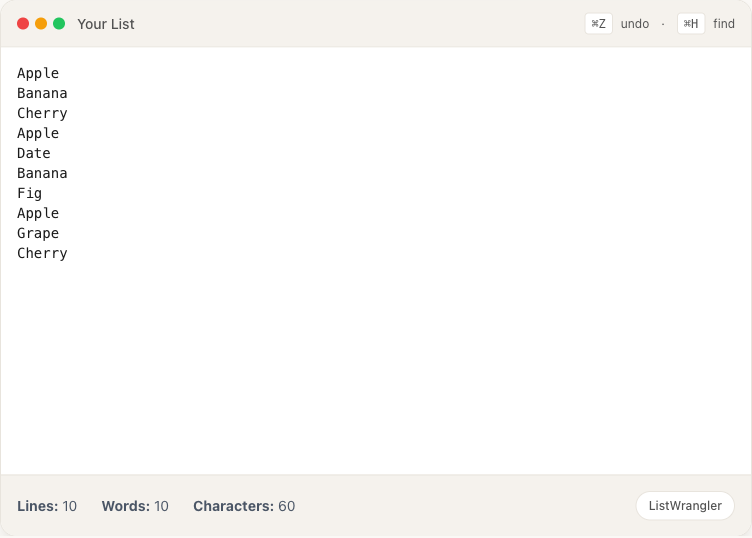
Paste or type your list into the editor. Each item should be on its own line. In this example, we have a list of fruits with several duplicates - Apple appears 3 times, Banana appears twice, and Cherry appears twice.
Step 2: Open the Clean Menu
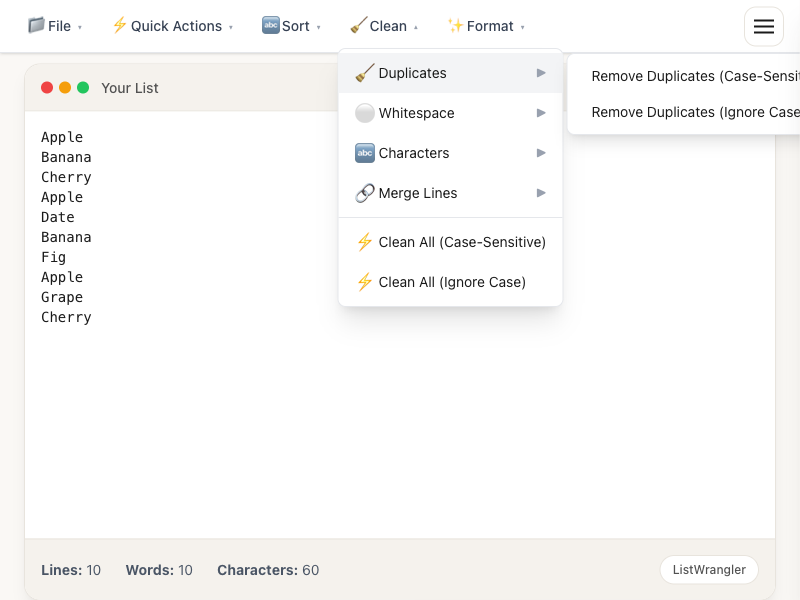
Click on the Clean menu in the toolbar. You’ll see several cleaning options organized into submenus. Hover over Duplicates to reveal the duplicate removal options.
Step 3: Choose Your Removal Method
Select one of the duplicate removal options:
- Remove Duplicates (Case-Sensitive): Treats “Apple” and “apple” as different items
- Remove Duplicates (Ignore Case): Treats “Apple” and “apple” as the same item
Click your preferred option to instantly remove all duplicates from your list.
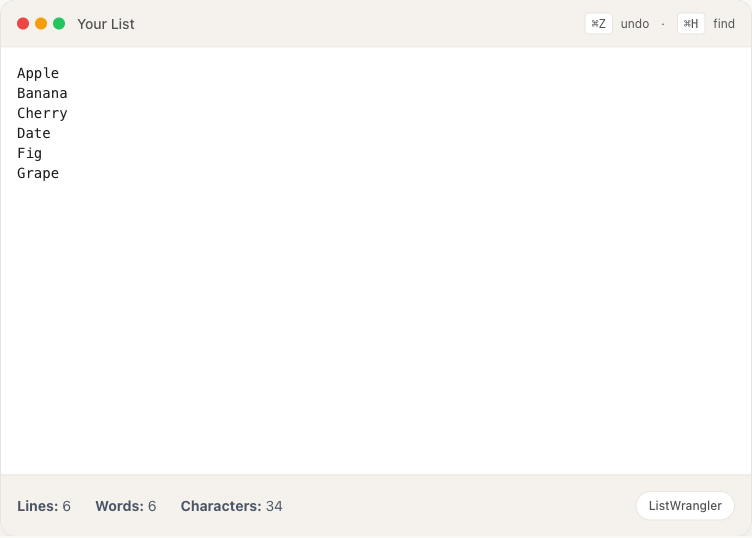
Notice how the line count dropped from 10 to 6 - that’s 4 duplicate entries removed instantly.
Alternative: Quick Actions Menu
For faster access, you can also remove duplicates from the Quick Actions menu. This uses case-sensitive matching by default and is perfect when you need to quickly clean a list.
Tips
- Preview your list first: Check the line count before and after to see how many duplicates were removed
- Choose the right case sensitivity: Use “Ignore Case” when dealing with user-entered data that may have inconsistent capitalization
- Combine with other cleaning: Use “Clean All” to remove duplicates, empty lines, and trim whitespace in one operation
- Undo if needed: Press Cmd+Z (Mac) or Ctrl+Z (Windows) to undo if you need to restore duplicates
Common Use Cases
- Email lists: Remove duplicate email addresses before sending campaigns
- Product catalogs: Clean up inventory lists with repeated SKUs
- Survey data: Eliminate duplicate responses from data exports
- Contact lists: Merge and deduplicate contact names
- Code/data files: Clean up configuration files with repeated entries
Was this guide helpful?
Let us know how we can improve
Ready to try it yourself?
Put what you learned into practice. ListWrangler is free, requires no sign-up, and works entirely in your browser.
Try ListWrangler Free