How to Find and Replace Text in Lists
Learn how to quickly find and replace text in your lists using ListWrangler's powerful search and replace tool. Master case-sensitive search, whole word matching, and instant text replacement.
Finding and replacing text in lists is one of the most common tasks when working with data. Whether you need to fix typos, update outdated information, or standardize formatting, ListWrangler’s Find and Replace feature makes it quick and easy.
What You’ll Learn
In this guide, you’ll discover how to:
- Access the Find and Replace tool
- Perform simple text replacements
- Use case-sensitive and whole word matching
- Preview changes before applying them
- Access your recent search history
Step 1: Open the Find and Replace Tool
- Paste or type your list into the main text area
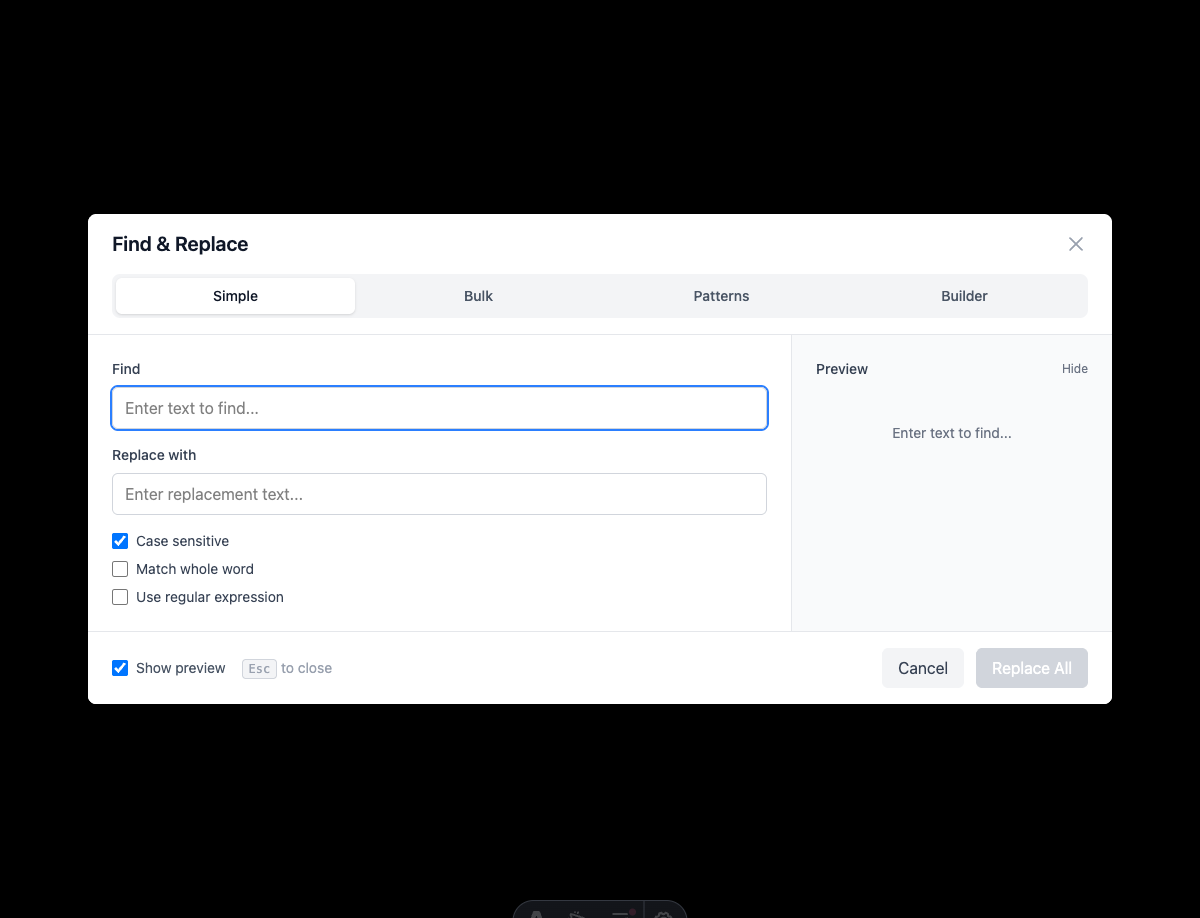
- Click the Find & Replace button in the toolbar (or press
Ctrl+H/Cmd+H) - The Find and Replace modal will open in Simple Mode by default
Step 2: Enter Your Search and Replacement Text
In the Find and Replace modal:
- Find field: Enter the text you want to search for
- Replace field: Enter the text you want to replace it with
- Watch the match counter update in real-time as you type
For example, to replace “colour” with “color”:
- Find:
colour - Replace:
color
Step 3: Configure Your Search Options
ListWrangler offers three powerful search options:
Case Sensitive
When enabled, “Apple” won’t match “apple” or “APPLE”. This is useful when:
- You need to preserve capitalization patterns
- You’re working with data where case matters (like codes or IDs)
Whole Word
When enabled, searching for “cat” won’t match “category” or “scatter”. Use this when:
- You want exact word matches only
- You’re replacing specific terms without affecting similar words
Use Regex
Enable this for advanced pattern matching (covered in our regex guide).
Step 4: Preview Your Changes
Before committing to any changes:
- Toggle Show Preview to see exactly what will change
- Review the preview panel on the right side of the modal
- Check the replacement count to ensure the right number of matches
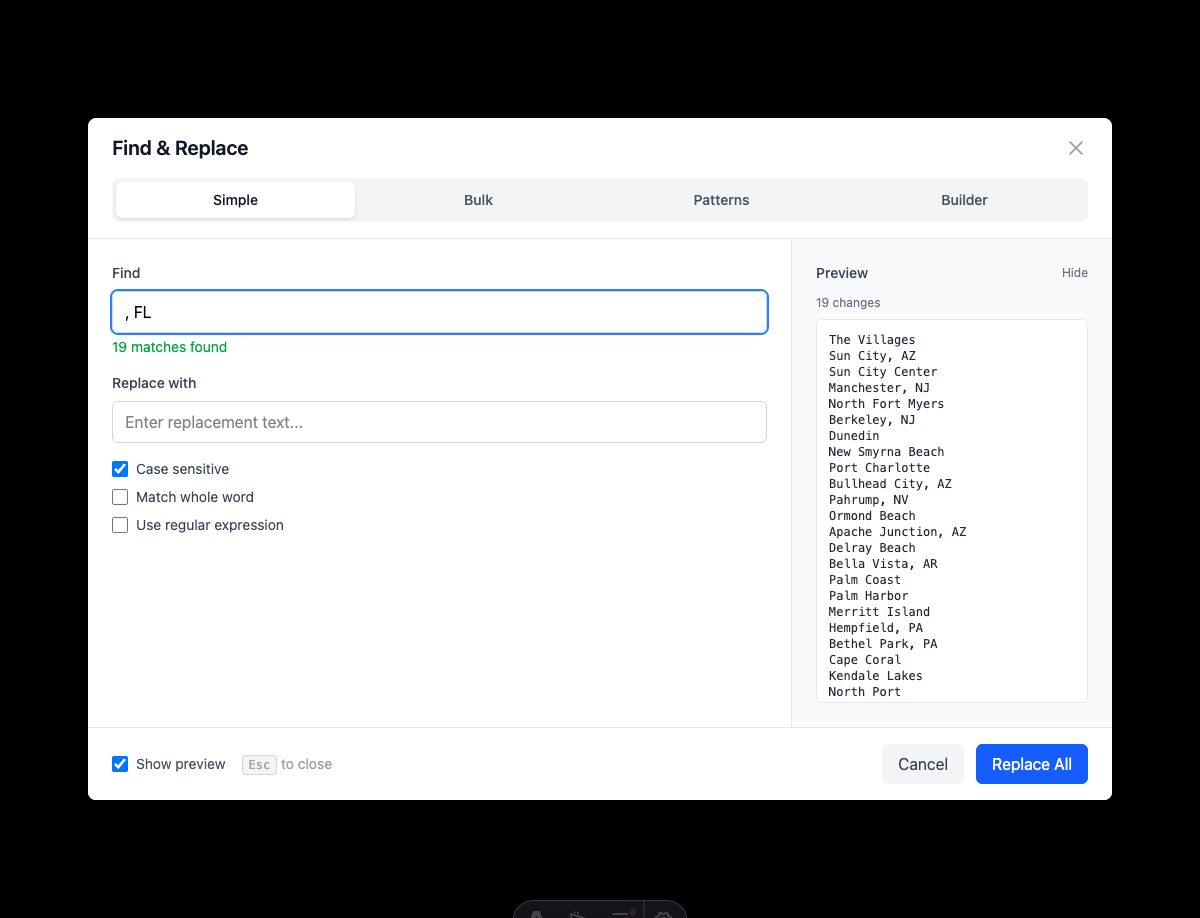
This preview feature helps you avoid unintended replacements.
Step 5: Apply Your Replacements
Once you’re satisfied with the preview:
- Click the Replace All button
- Your list will be updated instantly
- The modal will close and show a success notification
Using Recent Searches
ListWrangler automatically saves your last 20 searches for quick access:
- Click the Recent button (clock icon) in the Find field
- Select a previous search from the dropdown
- Both the find and replace values will be restored
This is especially useful for repetitive tasks or frequently used replacements.
Practical Examples
Example 1: Fix Common Typos
- Find:
teh - Replace:
the - Options: Case insensitive, whole word
Example 2: Update Company Names
- Find:
Acme Corp - Replace:
Acme Corporation - Options: Case sensitive
Example 3: Remove Unwanted Characters
- Find:
*** - Replace: (leave empty)
- Options: Default
Example 4: Standardize Formatting
- Find:
- Replace:
- Options: Default
Tips for Better Results
- Start specific: Begin with exact matches before using broader searches
- Use preview: Always preview changes on large lists
- Work incrementally: Make one type of replacement at a time
- Check your options: Ensure case sensitivity and whole word settings are correct
What’s Next?
Now that you’ve mastered basic find and replace, explore these advanced features:
- Bulk Find and Replace - Replace multiple patterns at once
- Using Regex Patterns - Advanced pattern matching
- Extract Data with Patterns - Pull specific data from lists
Frequently Asked Questions
Can I undo a find and replace?
Yes! Use Ctrl+Z (or Cmd+Z on Mac) immediately after replacing to undo the changes.
Is there a limit to how much text I can search?
ListWrangler handles large lists efficiently using background processing for optimal performance.
Does it work with special characters?
Yes, you can search for and replace any characters. For special regex characters like . or *, enable regex mode and escape them with a backslash (e.g., \.).
Was this guide helpful?
Let us know how we can improve
Ready to try it yourself?
Put what you learned into practice. ListWrangler is free, requires no sign-up, and works entirely in your browser.
Try ListWrangler Free